
Efficient image handling is one of the key factors in building a high-performance web application. When using Next.js, developers gain access to a powerful built-in solution for this: the Next.js Image Optimization feature, powered by the next/image component.
This article explores how Next.js Image works, why it matters, and how it compares to using regular images in terms of performance.
What Is Next.js Image Optimization?
Next.js Image Optimization is a feature that automatically optimizes images on demand as users request them. Instead of serving large, unoptimized images directly from your codebase, Next.js handles the heavy lifting: resizing, compressing, and serving them in modern formats like WebP when supported by the browser.
This ensures that every image loads faster without compromising visual quality, which is crucial for both SEO and user engagement. Optimized images are cached and reused, minimizing bandwidth usage and improving load times.
The next/image Component
At the core of Next.js Image Optimization is the next/image component. Often referred to simply as Next Image, it replaces the traditional HTML <img> tag with a more intelligent and flexible version.
Here’s a basic example:
import Image from "next/image";

export default function Example() {
  return (
    <div>
      <h1>Next.js Image Example</h1>
      <Image src="/images/hero.jpg" alt="Hero Image" width={800} height={600} />
    </div>
  );
}
Using it comes with several benefits such as:
- Automatic Optimization: Images are served in the optimal format and size for the user’s device.
- Lazy Loading: Non-priority images are lazy-loaded by default, improving initial page load time.
- Responsive Support: The
sizesandfillproperties allow for fluid, responsive layouts. - Blur Placeholder: Displays a low-quality placeholder (LQIP) while the full image loads.
Avoid lazy loading key images: understanding the loading prop
Next.js by default will set the loading prop value to lazy for non-priority images. This way, less important images below the fold don't delay loading for important images.
However, for images that should appear as soon as possible, like the images responsible for the Largest Contentful Paint, these elements must not have loading="lazy". Having a lazy loaded LCP element is a common issue for web performance and can be observed in the page speed test result.
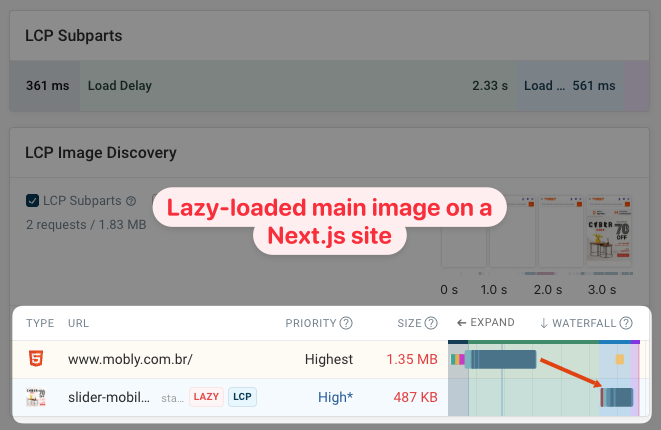
Instead, you should set the loading="eager" and fetchPriority="high" to instruct the browser that this resource needs to be delivered as soon as possible as it is important for the user.
<Image
  src="/images/hero.jpg"
  alt="Hero Image"
  loading="eager"
  fetchPriority="high"
/>
How Next.js Image Optimization Works
When you request an image through the next/image component, Next.js:
- Detects the user's device and browser.
- Serves the image in the most efficient format (e.g., WebP or AVIF if supported).
- Resizes the image to the appropriate dimensions.
- Caches the optimized result for faster future requests.
Behind the scenes, the Next.js Image Optimization API handles these transformations dynamically. Developers can also configure a custom image loader if hosting images on an external CDN.
In your next.config.js, you can define which domains are allowed to serve images:
module.exports = {
  images: {
    domains: ["example.com", "cdn.myapp.com"],
  },
};
If your images are hosted elsewhere or require a specific URL structure, you can use a custom loader:
const customLoader = ({ src, width }) => {
  return `https://cdn.myapp.com/${src}?w=${width}`;
};

// Then use it in your component:

<Image
  loader={customLoader}
  src="photo.jpg"
  width={800}
  height={600}
  alt="Custom"
/>;
Performance Comparison: Next.js Image vs Regular <img> Tag
Let’s look at how a site using Next.js Image Optimization might compare to a site using plain <img> tags without optimization.
| Metric | Regular <img> (Unoptimized) | next/image (Optimized) |
|---|---|---|
| Image Size | Original file served (e.g., 2.5 MB) | Optimized WebP version (e.g., 350 KB) |
| Load Time (3G Connection) | ~4–5 seconds | ~1–2 seconds |
Let's analyze the benefits of using <Image> in Next.js:
- Format Conversion: Next.js serves images in next-gen formats like WebP or AVIF, which are 25–70% smaller than JPEG or PNG.
- Responsive Resizing: Only the exact image size needed is loaded — not the full-resolution version.
- Lazy Loading: Off-screen images aren’t loaded until they’re visible, reducing initial payload.
- Caching: Optimized images are cached on both the server and client for fast repeat visits.
- Proper Dimension Handling: Predefined
widthandheightprevent layout shifts and improve CLS.
Understanding the sizes Attribute for Responsive Images
When working with responsive layouts, the sizes attribute is one of the most important — yet most commonly overlooked — parts of Next.js Image Optimization. While Next.js automatically generates multiple image variants at different widths, it’s the sizes attribute that tells the browser how much space the image will occupy at various viewport widths. Based on this information, the browser selects the optimal image file to download.
Without a correctly defined sizes value, the browser may default to downloading a much larger image than necessary, which increases bandwidth usage and slows down loading performance, especially on mobile devices.
Let’s take a look at the following example of breakpoint-based responsive images:
<Image
  src="/images/hero.jpg"
  alt="Hero section"
  width={1600}
  height={900}
  sizes="(max-width: 768px) 100vw,
         (max-width: 1200px) 50vw,
         33vw"
/>
Interpretation:
- mobile screens (
max-width: 768px): image fills entire width - tablets: image uses 50% of viewport
- large screens: image uses roughly one-third of the viewport
This dramatically reduces downloaded image sizes — for example, mobile users may only fetch a 640px version, while desktops fetch a 1200px version.
If you don’t use sizes, your images may still work visually, but the browser will often download unnecessarily large files — defeating part of the optimization benefits.
Preloading images in Next.js
Preload link tags tell the browser to start loading resources on the page before the HTML element that requires them has been created.
Use the preload prop in Next.js to ensure important images load early.
<Image
  src="/important-image.jpg"
  alt="Load this early"
  width={1600}
  height={900}
  preload={true}
/>
Keep in mind that browsers can already discover images in the page HTML automatically, and fetchPriority="high" will ensure the image gets loaded quickly. So preloading the image isn't always necessary.
Avoid preloading unimportant images, as this will cause bandwidth competition with other important requests, like render-blocking stylesheets or above-the-fold images.
Creative Effects and UX with Optimized Images
Beyond performance, optimized images can also enhance user experience with creative effects. Next.js's <Image> component supports techniques that make pages feel faster and more engaging.
Let’s take a look at the blur-up placeholder example. The blur-up effect shows a low-resolution version of the image while the full image loads, giving immediate visual feedback:
import Image from "next/image";
import hero from "../public/hero.jpg";

export default function Hero() {
  return (
    <Image
      src={hero}
      alt="Hero Image"
      width={1200}
      height={600}
      placeholder="blur"
    />
  );
}
Other Creative Effects
- Hover Zoom: Add subtle zoom or pan effects on hover for interactive galleries.
- Skeletons/Shimmer: Display animated placeholders while images load to keep users engaged.
- Progressive Loading: Combine modern formats like WebP/AVIF with progressive rendering for faster perceived load.
- Dynamic Transformations: Apply cropping, grayscale, or other effects via a CDN or libraries like Unpic.
By combining optimization with these creative techniques, you can turn images into a UX feature, making pages both fast and visually appealing.
Bonus: Unpic for Next.js - A Flexible Alternative
Unpic is a modern React image component library that works seamlessly with Next.js, providing a lightweight and flexible alternative to next/image.
It’s designed to simplify image handling by automatically detecting supported CDNs (like Cloudinary, Shopify, or Imgix) and offloading resizing, cropping, and format conversion to them. At the same time, it integrates with Next.js’s built-in Image Optimizer to handle local images, giving developers a single, unified solution for both local and external assets.
Here's an example showing how to use Unpic on your Next.js website:
import { Image } from "@unpic/react/nextjs";
import logo from "../public/logo.png";

export default function MyComponent() {
  return (
    <>
      <Image src={logo} alt="Logo" layout="constrained" />
      <Image
        src="https://cdn.shopify.com/static/sample-images/garnished.jpeg"
        layout="constrained"
        width={800}
        height={600}
        alt="Shopify product"
      />
    </>
  );
}
Key benefits of using Unpic:
- Simplified setup: No manual loader configuration is needed for external images. Unpic detects supported CDNs automatically and applies transformations directly.
- Responsive layouts: Supports
fixed,constrained, andfullWidthlayouts, allowing images to adapt naturally to different screen sizes. - Advanced transformations: Offers cropping, format conversion (e.g., WebP), and quality adjustments. Transformations can be applied per provider or via Next.js’s optimizer for local images.
- Unified approach: Handles both local and CDN-hosted images consistently, which is especially useful for projects with mixed sources.
When to consider Unpic:
- Projects that require a combination of local and external images.
- Cases where you need fine-grained control over image transformations without setting up multiple loaders.
- Teams seeking a lightweight alternative to
next/imagethat still leverages Next.js optimization features. - Scenarios where you want to minimize boilerplate while ensuring responsive, high-performance images across devices.
While next/image remains the default choice for most Next.js projects due to its deep framework integration, Unpic is an excellent alternative when flexibility, CDN-aware optimization, or a unified API for mixed image sources is a priority. Its simplicity, responsive design options, and CDN integration make it a practical choice for modern web applications that need performant images without complex configuration.
Audit Next.js websites for performance
DebugBear could be used to audit Next.js websites and specifically find issues related to image optimization. For this example, we have audited the nike.com website that was built with Next.js.
The full report is available here.
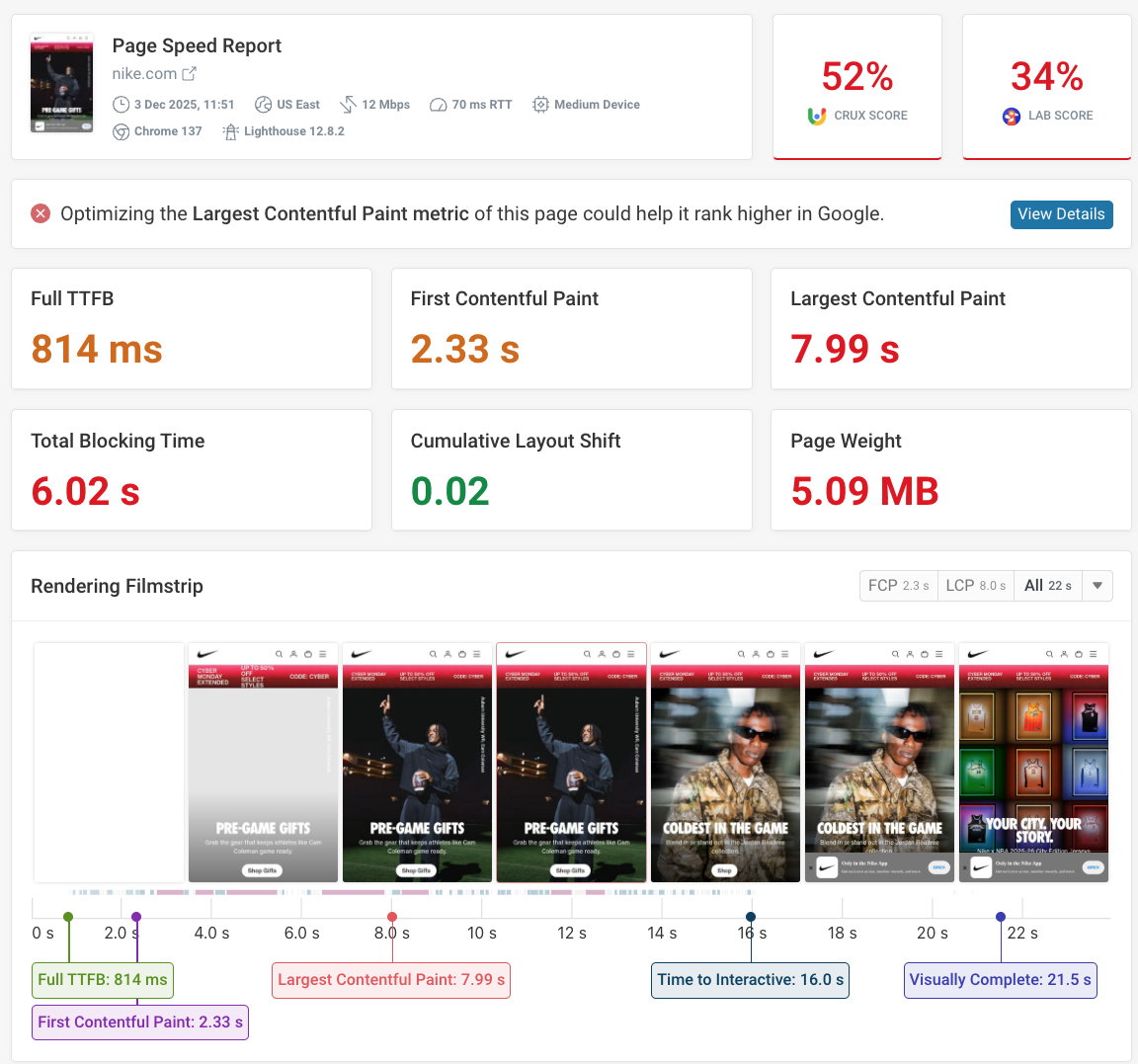
We can clearly see that both CrUX and Lab scores are not the best for users accessing the website from mobile devices. Based on the CrUX metrics, optimizing the Largest Contentful Paint metric of this page could help it rank higher in Google.
Scrolling down, we can see many more recommendations:
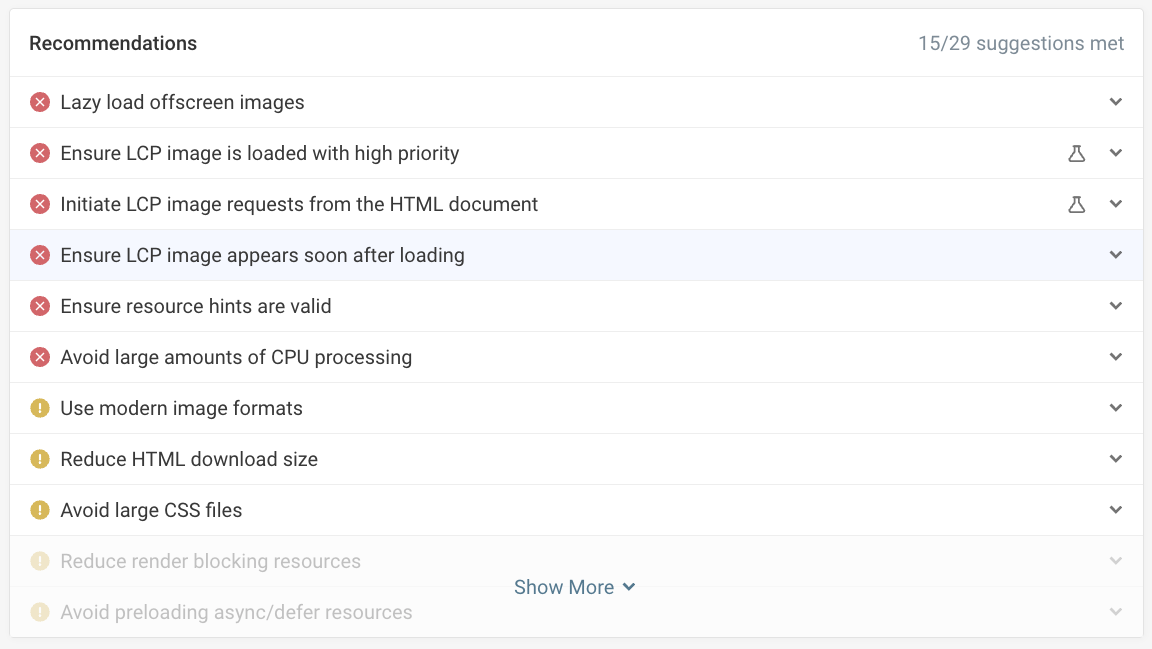
Some of the issues are related to images such as lazy loading, setting high-priority, or using modern image formats. Next Image automatically uses modern image formats, delivers responsive sized images, and allows you to easily configure lazy loading as well as fetchPriority to optimize images and improve overall performance and metric values.
Next Image Best Practices
To achieve the best performance and UX possible, follow these best practices:
- Always specify
widthandheight(or usefill) to prevent layout shifts. - Use
priorityfor above-the-fold images like hero banners or logos. - Configure responsive
sizesfor mobile-friendly delivery. - Combine Next.js Image Optimization with a CDN for even faster performance.
- Make sure all external image hosts are allowlisted.
- Stick to common formats like JPG, PNG, or WebP.
By using them you ensure that the experience for your users will be great.
Summary
Next.js Image Optimization is one of the most powerful built-in features of Next.js, offering effortless performance gains through smart image handling. The next/image component — or Next Image — abstracts away the complexity of serving responsive, optimized, and lazy-loaded images.
Compared to traditional <img> elements, websites using Next.js Image load faster, consume less bandwidth, and score higher in Core Web Vitals. By adopting Next.js Image Optimization, you’re ensuring your app delivers top-tier visual quality and speed — both of which directly impact user satisfaction and SEO.
If you would like to learn more about these concepts, please check out our in-depth guide to Next.js performance optimization.
Monitor Next.js Performance with DebugBear
Optimizing images is just one part of building a fast Next.js app. To see how your changes affect real-world performance, you need continuous monitoring.
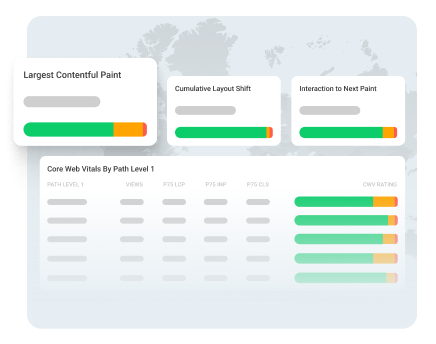
With DebugBear, you can set up scheduled synthetic tests to track the impact of your changes and identify the most impactful optimizations. You can also use real user monitoring (RUM) to see how your Next.js app performs for actual visitors across different devices and network conditions.
To start tracking your Next.js app's performance, sign up for a free 14-day trial and get detailed insights into your Core Web Vitals.
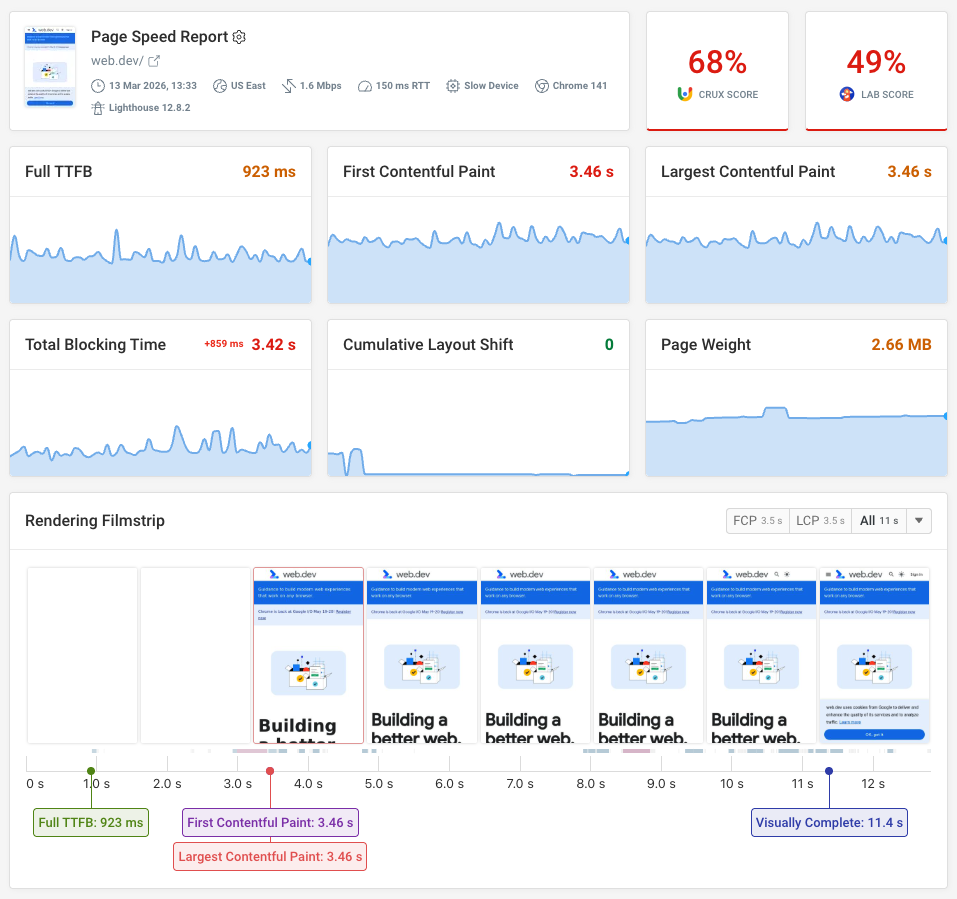
Monitor Page Speed & Core Web Vitals
DebugBear monitoring includes:
- In-depth Page Speed Reports
- Automated Recommendations
- Real User Analytics Data