
I recently made some performance improvements to the DebugBear homepage. This article explains how to use the loading="lazy" HTML attribute to make your website render more quickly.
What is lazy loading?
Lazy loading means only loading a website resource when it's needed. Typically that means different resources are loaded when the visitor reaches different scroll positions on the page.
Most commonly, lazy loading is used for images. As the user scrolls down new images enter their device viewport and are downloaded at that point or just before.
Lazy loading is a way to use network resources more efficiently and optimize website speed.
The problem: resource prioritization
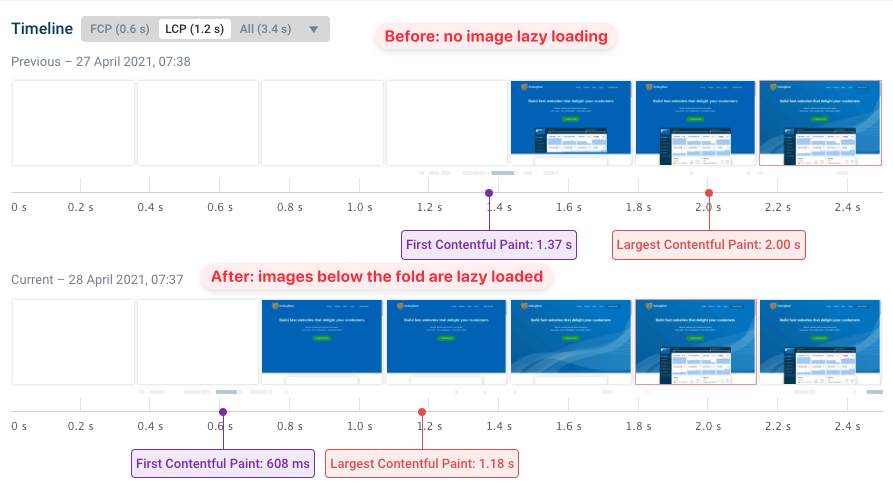
The filmstrip above shows that the background image of the hero section only loads after about 1.6s. Before that a plain blue background is used.
Why does it take so long? We can find out by looking at the detailed request waterfall.
The request for the background image is only made relatively late. Before that the browser loads several large below-the fold images, using up the available bandwidth. When different resources compete for bandwidth this means some of them will take longer to download.
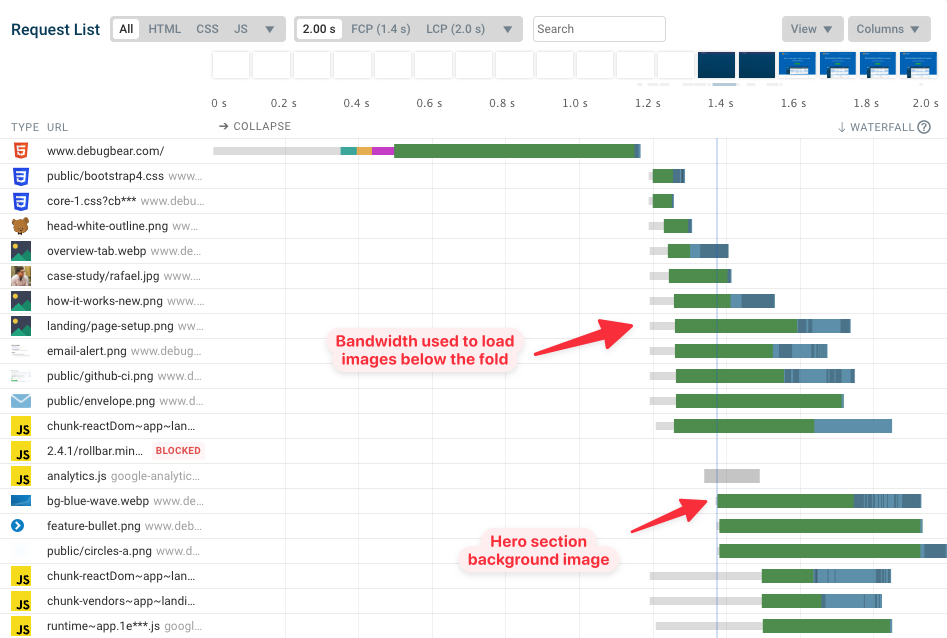
The right-most part of each request shows the response body being downloaded. The darker areas show when data for that request is received, so you can see what requests the browser is spending bandwidth on.
Most of this is allocated to the below-the-fold images, but the browser is also loading some JavaScript code before loading the hero background image.
What does the HTML img loading="lazy" attribute do?
By default, all images on a page are loaded as soon as the user opens the page. Setting the loading attribute to lazy can defer fetching images and iframes until the user scrolls near the element.
<img src="image.png" loading="lazy" />
That avoids unnecessary downloads and helps the browser focus on the most important requests.
Impact of implementing the solution
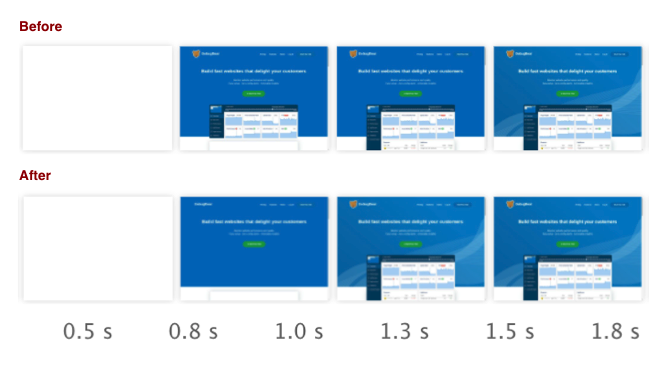
The below-the-fold images are now deprioritized, and the browser loads the background image much earlier. The Largest Contentful Paint goes from 1.6s to 0.8s.
(The filmstrip makes it look like the above-the-fold image loads later than before, but this is only minor variation, not an effect of the lazy loading change.)
What browsers support the loading="lazy" attribute?
Native lazy loading is supported across all major browsers, like Chrome, Firefox, Safari, and Edge.
Why is native image lazy loading better than using a library?
Using a library to lazy load images means that you first need to load JavaScript code before starting to load the image. If the user starts scrolling down, it may take a while before images show up.
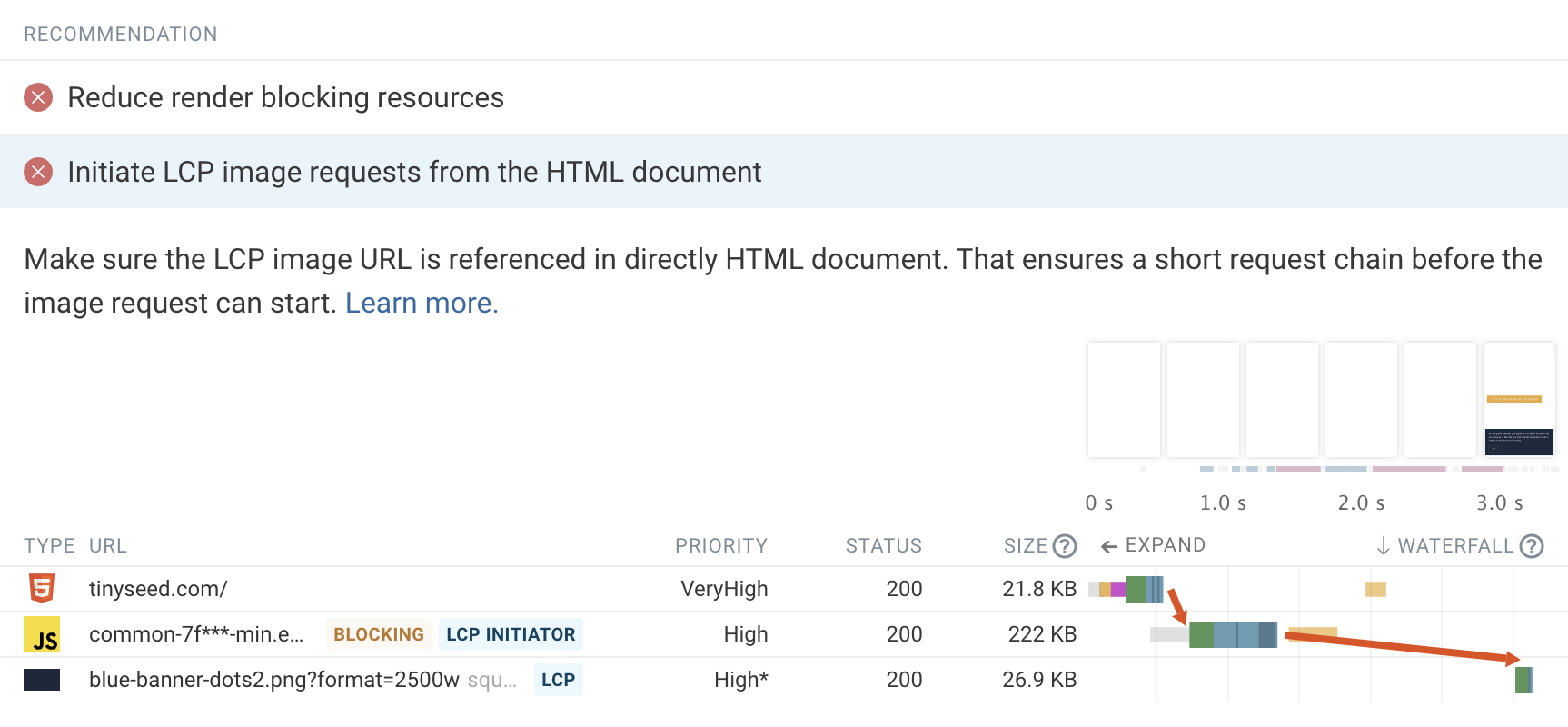
This is especially noticeable if the LCP image is lazy loaded. In this waterfall you can see a long request chain for the LCP image.
How do you lazy load a background image?
The loading=lazy attribute doesn't work for background images, so you'll need to use JavaScript to defer an off-screen background image. You can check if the image is near the viewport and then either modify the style attribute directly or add a class with a background-image defined in a CSS file.
You can use the Intersection Observer API to check whether the image is in the viewport.
What if my user loads an article and then wants to read it offline?
If you're writing a long blog post, readers might prefer to load it on their phone and then read it when they don't have an internet connection.
When images are lazy loaded, they'll be missing once the reader scrolls down the page. To avoid that, you can remove the loading attribute from the img tags after the initial page load.
setTimeout(() => {
  document
    .querySelectorAll("img[loading='lazy']")
    .forEach((el) => el.setAttribute("loading", ""));
}, 5000);
The images will then be downloaded right away but without having affected the initial page load.
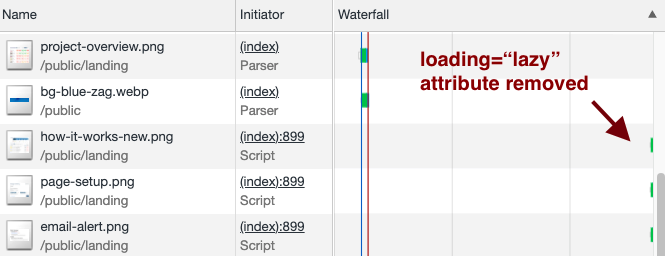
The trade-off here is bandwidth consumption: on a mobile plan with limited traffic, users may prefer not loading images that they aren't going to see.
A worse Lighthouse Performance score
One thing that happened when I enabled image lazy loading and later removed the loading attribute is that my Lighthouse Performance score went down.
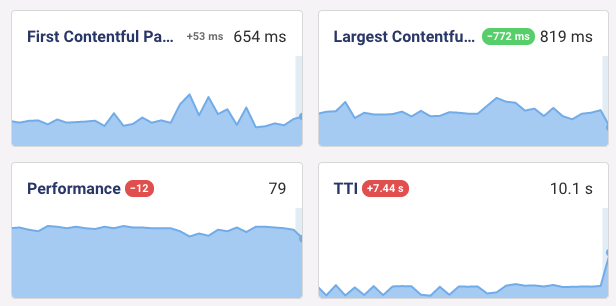
The initial render was a lot quicker, but Time to Interactive went up because more network activity was moved to later in the page load process, keeping the network active for longer.
Is this a problem? Not really. I care about user experience and the Core Web Vitals Google uses for search engine rankings. Time to Interactive doesn't matter in either case.
One easy workaround would be to increase the delay from 5s to 10s. Lighthouse assumes the network is idle after 5s of no activity, so pushing back the extra image requests will improve Time to Interactive.
The Lighthouse Performance score isn't the most important metric to optimize for. Instead, focus on improving the visitor experience.
Lazy loading offscreen images
Lighthouse includes a defer offscreen images performance audit. DebugBear lets you run experiments to try out this optimization to see how much it would improve your page speed.
You can see what images are shown outside of the initial viewport. On this website there are several large images that currently load before the LCP image.
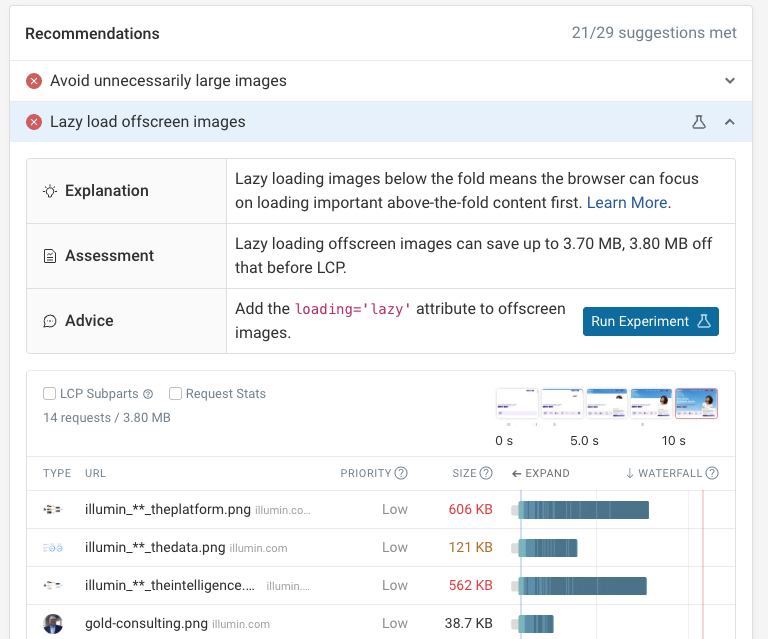
Click on the "Run Experiment" button to test the page with these images lazy loaded.
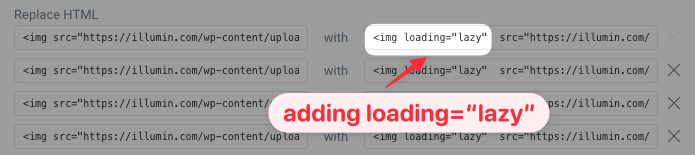
You can see that the HTML in the experiment will be modified to include the loading="lazy" attribute.
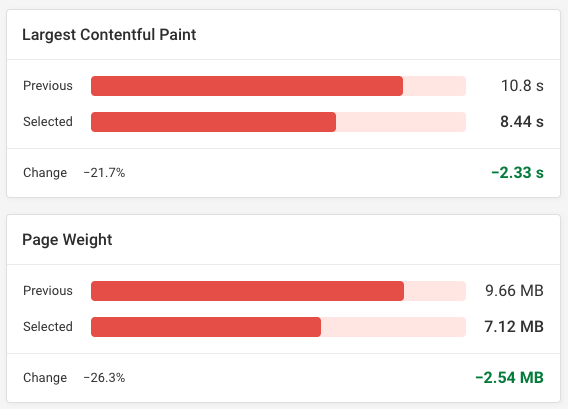
The test result shows a 22% improvement in the Largest Contentful Paint metric and a 26% reduction in page weight.
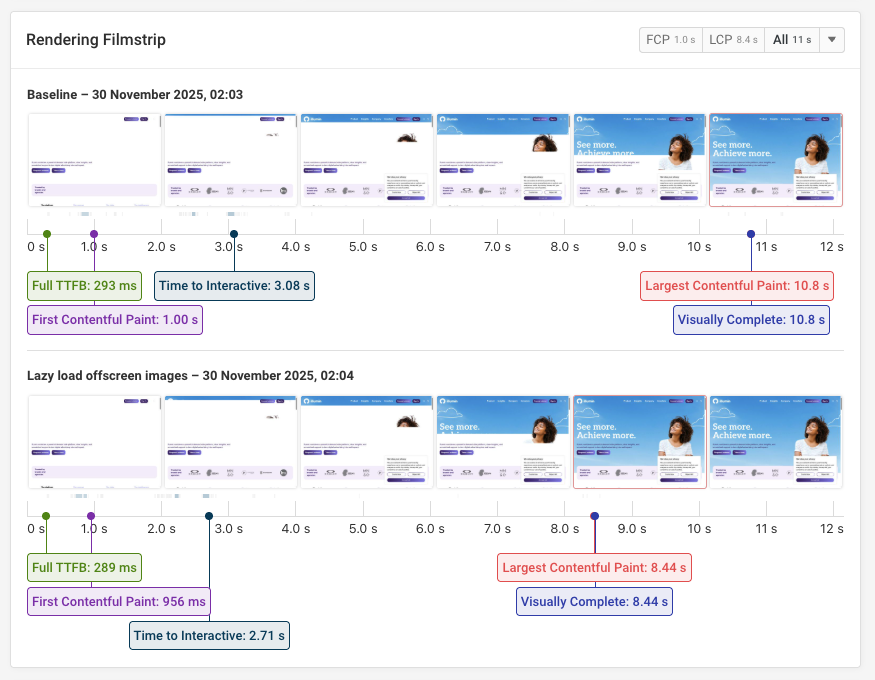
The filmstrip comparison shows what this means for user experience. The image now loads slightly more quickly, which also means that visitors can read the white text earlier.
While performance has improved, the page still loads relatively slowly, and there's more work to be done.
Keep track of your page speed
DebugBear can monitor page load time and other performance metrics and alert you when something goes wrong. Run scheduled synthetic tests and compare test results to each other to understand what caused a metric change.
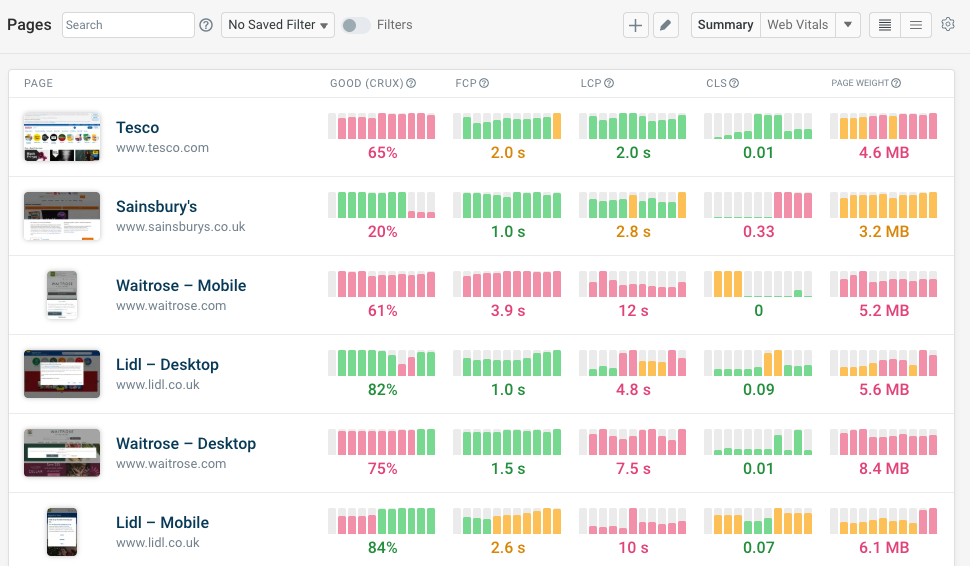
You can see how visitors experience your website and track Google Core Web Vitals metrics.
DebugBear also provides in-depth performance recommendations to optimize your website performance.
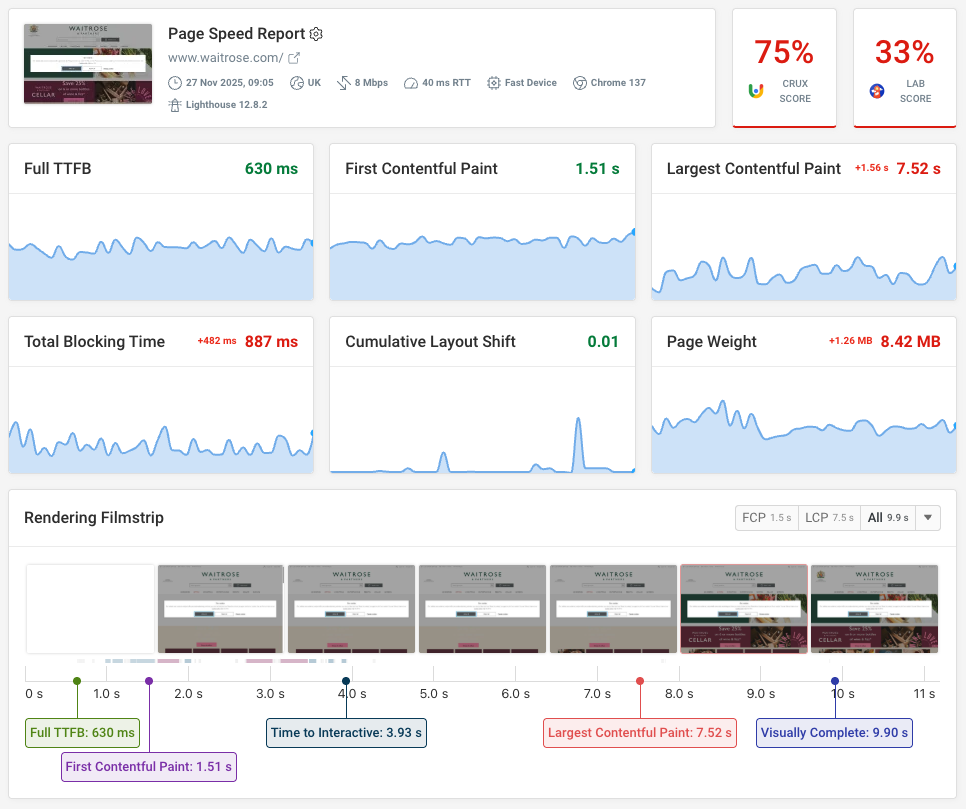
Real user data from Google's CrUX dataset and RUM analytics can give you a more comprehensive view of your website performance. Sign up for a free trial.
Monitor Page Speed & Core Web Vitals
DebugBear monitoring includes:
- In-depth Page Speed Reports
- Automated Recommendations
- Real User Analytics Data