
This article looks at how the anti-flicker snippets used by A/B testing tools like Optimizely and Adobe Target can negatively impact web performance.
After explaining the problem, we'll look at potential solutions that minimize flicker while also keeping site speed in mind.
Why can A/B testing tools cause flicker?
A/B tests and other customizations mean that the content on a website depends on the visitor who's viewing it. These customizations are usually implemented through a dedicated A/B testing service to let marketing teams run tests without having to get developers involved.
The visitor's browser first downloads the page with default content, then the browser loads the list of customizations from the A/B testing service, and finally applies them to the page.
However, these customizations introduce flicker. The visitor first sees the default content, and then the content disappears and is replaced.
What are anti-flicker snippets?
An anti-flicker snippet is a piece of code that prevents flicker caused by A/B testing tools by hiding the original page content until the customizations have been applied.
This graphic below shows filmstrips indicating the rendering progress of a website in three scenarios:
- Without A/B testing
- With A/B testing and flicker
- With A/B testing and an anti-flicker snippet
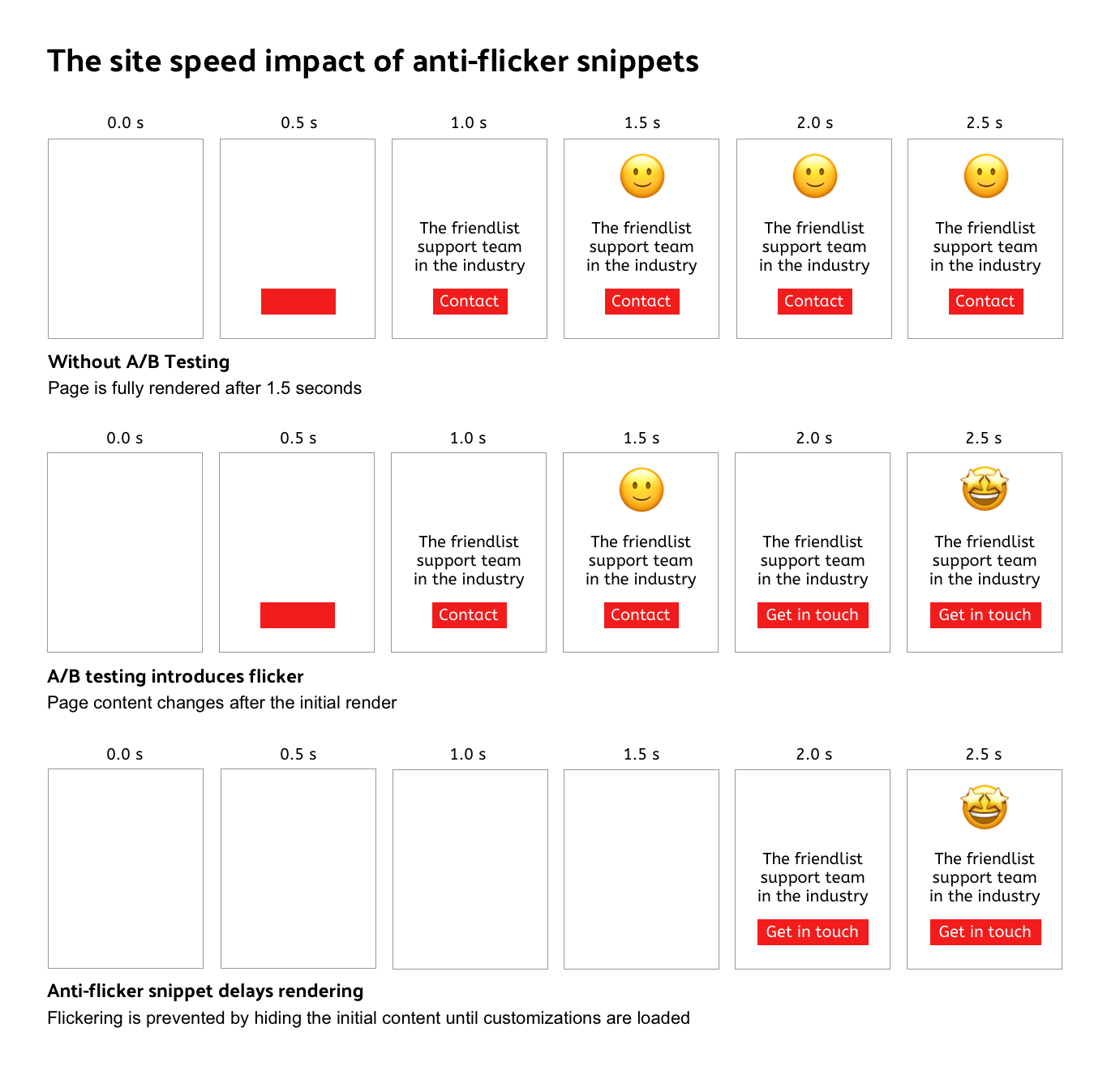
What is the Flash of Original Content (FOOC)?
When the website server displays content that is then visually replaced with something else by an A/B test, that is referred to as a Flash of Original Content.
Anti-flicker snippets are meant to fix the FOOC caused by A/B testing tools.
What's the problem with anti-flicker snippets?
Hiding content ensures that content customizations don't negatively impact the user experience when they are applied.
However, hiding content with anti-flicker snippets also causes a worse user experience by making the site load more slowly. Visitors to your site spend more time looking at an empty page.
How do anti-flicker snippets impact Core Web Vitals?
Anti-flicker snippets increase your Largest Contentful Paint (LCP) metric. This can also impact your Google rankings, as LCP is one of the Core Web Vitals that's used to assess site experience.
Applying customizations without an anti-flicker snippet can cause content to shift around on the page, if the custom content has a different size than the default content. These shifts in turn increase the Cumulative Layout Shift metric, another Core Web Vital.
So when optimizing your anti-flicker logic you need to balance these two competing concerns. I would lean towards first sorting out LCP issues, and then reviewing and addressing layout shifts one by one.
Anti-flicker snippets can help fix layout shifts caused by A/B testing tools. However, they slow down the initial page load.
Analyzing a real-world example of the impact of an anti-flicker snippet
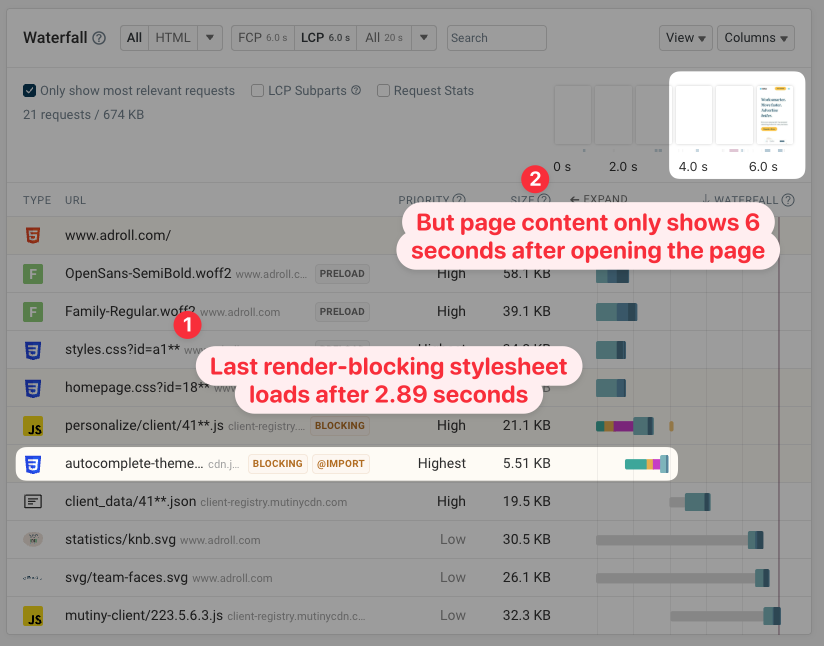
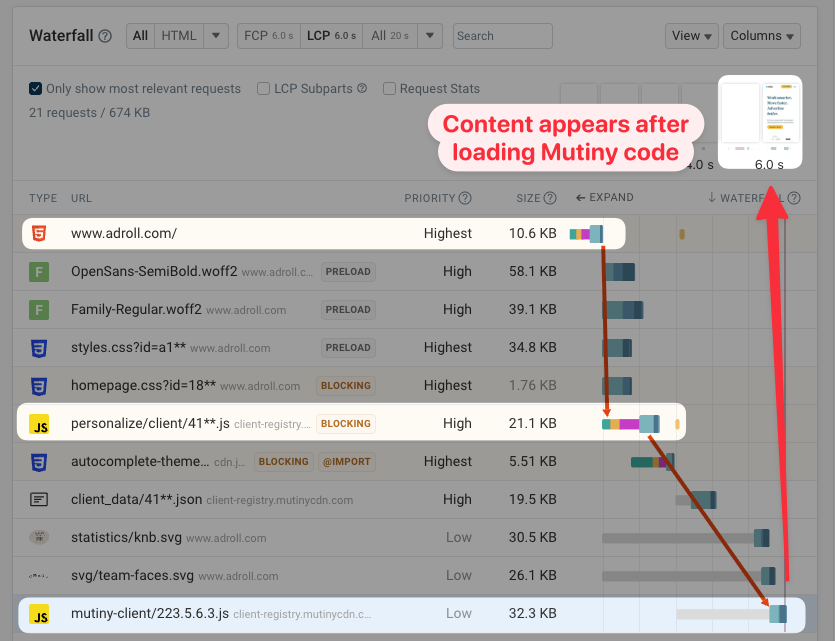
As an example of what hiding body content looks like in practice, let's inspect the Adroll homepage and look at how the data in the filmstrip seemingly conflicts with the request waterfall.
The request waterfall shows that the last render-blocking request finishes after about 2.9 seconds. Yet, the filmstrip shows no content until 6.0 seconds after the page was opened.
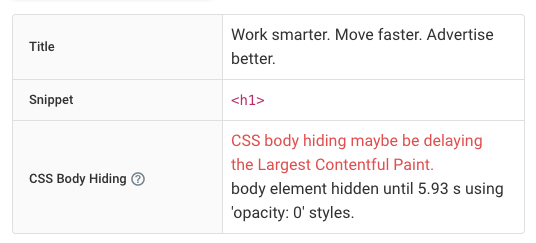
DebugBear detects that opacity: 0 styles were applied to the body element while the page was loading.
You can view this information either in the Recommendations section at the bottom of the Overview tab, or after expanding the Largest Contentful Paint metric.
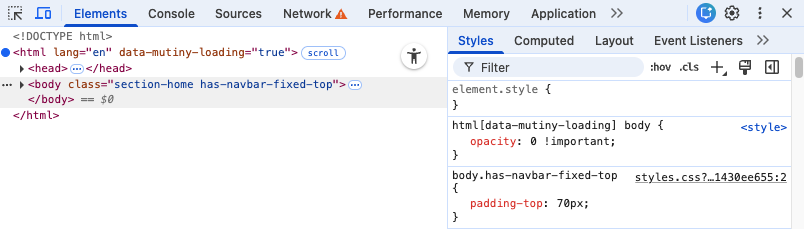
Pausing the page load in Chrome also confirms that the content has been hidden with CSS.
The [data-mutiny-loading] CSS selector tells us that Adroll uses the Mutiny website personalization platform.
Now let's look back at the request waterfall and look for requests that are related to Mutiny. We find two scripts as well as a JSON fetch request.
The two scripts form a sequential request chain, loading one after the other instead of loading in parallel. The page content shows up right after the mutiny-client has loaded.
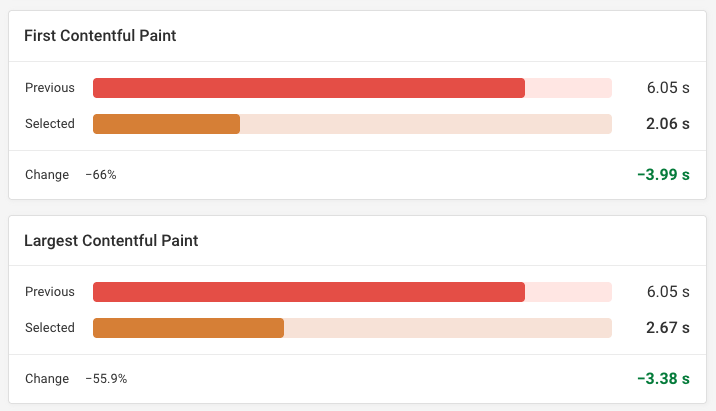
If we manually override those styles and run an experiment we can see that the Largest Contentful Paint score improves from 6 seconds to 2.7 seconds.
How can you fix poor performance caused by anti-flicker snippets?
To fix site speed issues caused by A/B testing tools you can:
- Run A/B tests server-side
- Configure the snippet to only hide some content
- Optimize how quickly the A/B tests load
- Accept the flicker instead of fighting it
- Disable A/B testing entirely on some pages
Server-side customizations and A/B testing
The reason anti-flicker snippets are necessary is that the web server first returns default content and then another tool modifies the content on the client.
If you're able to implement A/B tests on the server this problem can be avoided entirely. However, this is likely difficult to implement.
Customize the anti-flicker snippet
Anti-flicker snippets typically hide all content in the HTML body tag. This is a drastic solution, and it's done because the snippet does not know which parts of the page will be modified until the customizations have been loaded.
However, as the person running the A/B tests, you will know more about what type of tests you run. Do you test different page headings? Then hide only h1 tags. Are you customizing call-to-action copy on a button? Then hide buttons as well.
In contrast, you might not be running any customizations on p tags or content in the website header. So these components don't need to be hidden while the customizations are being loaded.
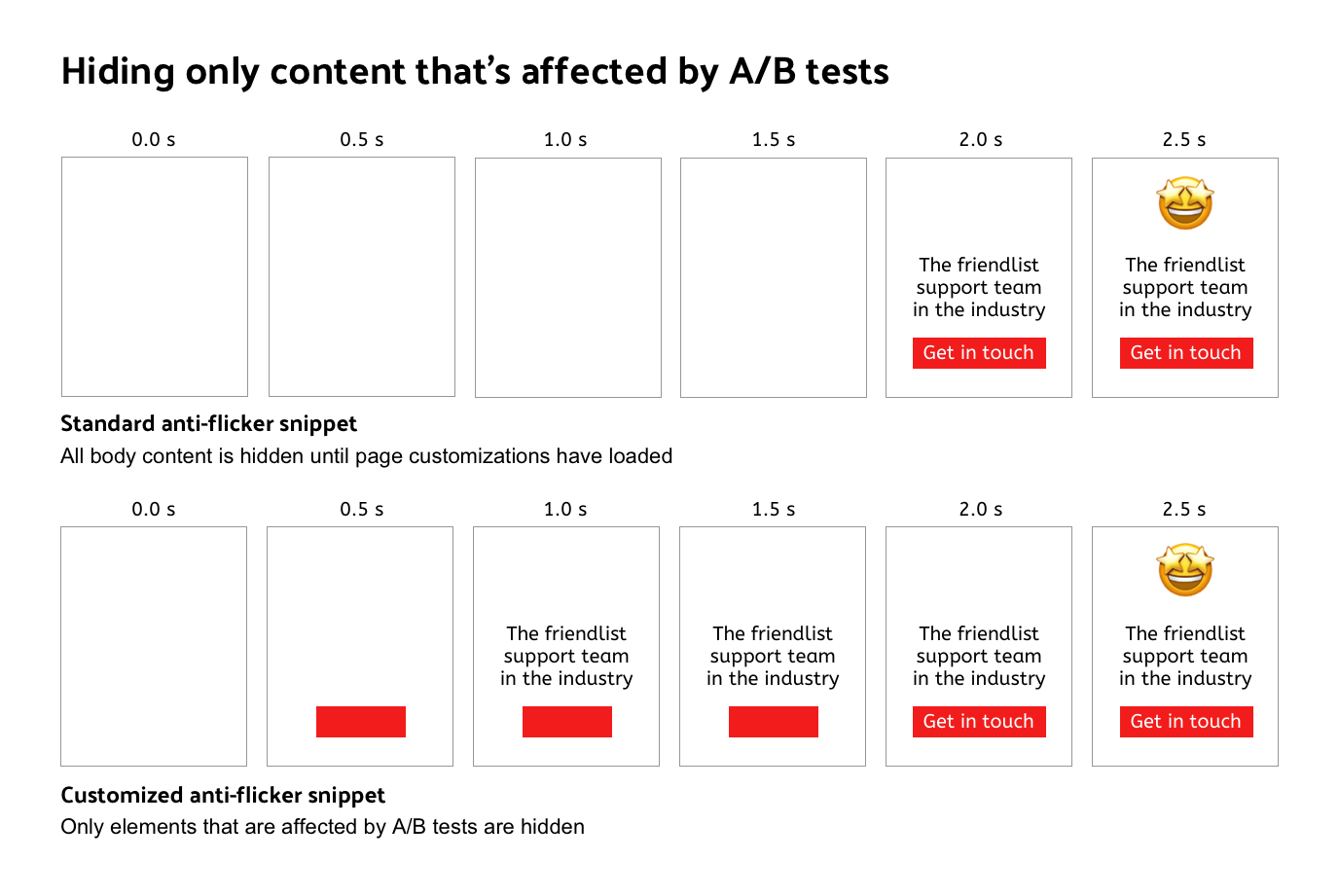
You could still end up with layout shifts, for example, if your customized h1 stretches over two lines instead of one. But a small layout shift might be acceptable and is less jarring than page content getting swapped out. If it is a problem, specify a minimum height for your h1 and make sure it is always large enough to handle different content lengths.
Load customizations more quickly
The process of how an A/B testing tool loads customizations might look like this:
- Load a tag manager
- Load additional code for the A/B testing tool
- Make a fetch request to get a unique ID for the user
- Use that unique ID to load the customizations
- Apply the customizations
This process is often sequential and involves establishing connections to multiple servers. Like any other request chain on your website it can be optimized, though this may be harder as you don't have full control over how the third-party works.
Browser resource hints can be a useful tool to optimize sequential request chains that cannot be parallelized.
For example, if the customizations are loaded from c.abtesting.com, you can add a preconnect hint for that domain to your document. The browser will establish a server connection before the actual fetch request. That way, when the fetch request is made, only one network round trip is needed, as the existing connection can be used.
Accept the flicker
If your users find that your site loads slowly, you might want to consider just accepting flicker when it happens.
This especially applies in these two cases:
- You only run tests on a few pages at a time, but the anti-flicker snippet is loaded globally for your site
- The tests you run don't target the most prominent page content, but instead tweak small UI components or customize below the fold content
Abandon A/B testing
Once you look into it, it might turn out the A/B testing tool isn't actually used very often. In that case, you can just remove the tool from your website.
Vendor-specific documentation
Many A/B testing tools have pages explaining the negative speed impact of anti-flicker code and how to mitigate it:
Anti-flicker snippets on DebugBear
DebugBear can automatically detect when anti-flicker snippets are preventing page content from showing up. If that is the case, you will see the "Don't hide page content using CSS" recommendation.

The Experiments tab lets you disable content hiding to confirm it's the cause of your performance issue, and to see how much your page speed would improve if the issue was solved.
Monitoring your page speed
Adding third-party code can easily introduce page speed regressions. DebugBear synthetic monitoring keeps track of your website performance and alerts you when there's an issue.
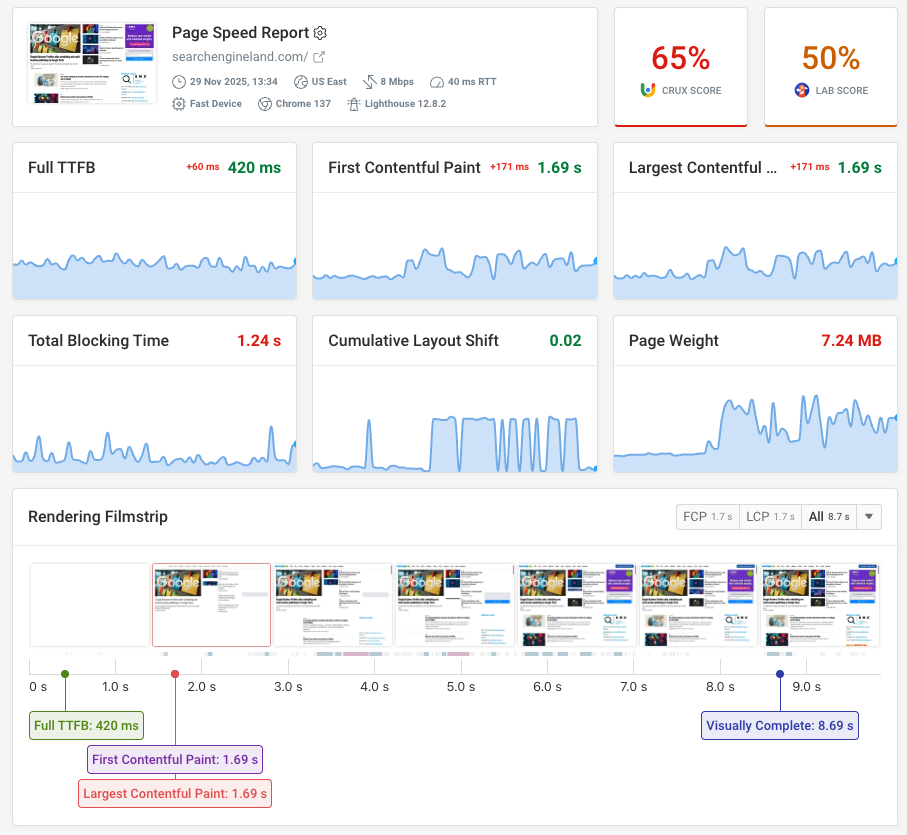
You can also collect real user metrics to measure how A/B tests and performance are impacting conversion rates.
Identify slow pages on your website and get the data your development team needs to fix poor performance. Sign up for a free trial.
Monitor Page Speed & Core Web Vitals
DebugBear monitoring includes:
- In-depth Page Speed Reports
- Automated Recommendations
- Real User Analytics Data