Conversion Tracking
Tracking visitor sessions and conversions on your website allows you to correlate website speed with business outcomes like bounce rates or conversion rates.
Enable conversion tracking
DebugBear does not enable session tracking by default. You can enable it in the RUM Settings tab of your project. After enabling this setting, a cookie will be set on your website to track page views that belong to a specific visitor session.
Record conversions
You can record a conversion via our RUM snippet API or with a URL-based conversion trigger.
URL-based conversion triggers
You can record conversion events without changing code on your website by setting up a conversion trigger in your RUM settings.
Open the Conversion Triggers tab and add a new trigger. The conversion will be recorded when a user visits a page that matches the URL Path wildcard.
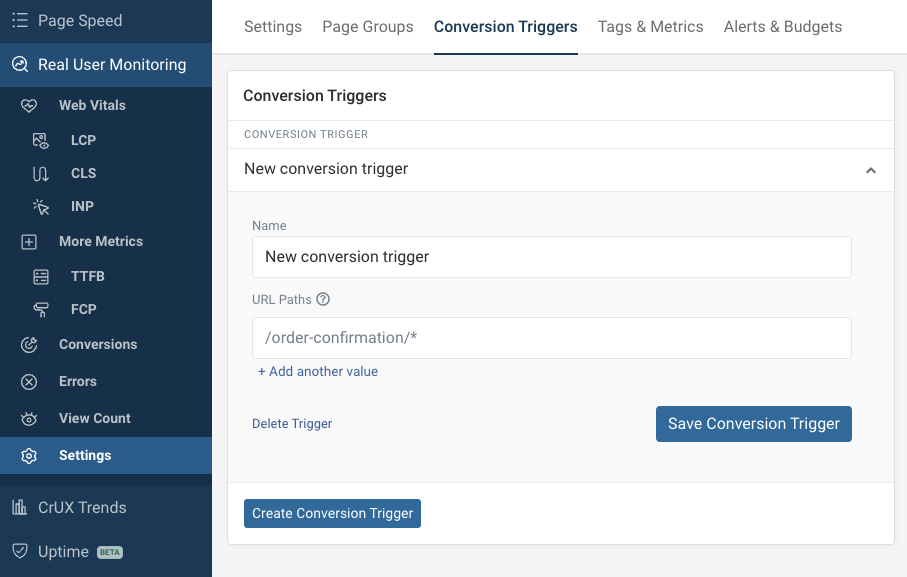
Path wildcards work like this:
/order-confirmationmatches just one single page/orders/*matches any path with two parts, where the first part isorders/orders/**matches any path starting withorders
If your website is a single-page application, DebugBear detects soft navigations and records conversions automatically. This works whether or not you have SPA mode enabled.
Using the RUM snippet API
Run this code to record a conversion with our RUM snippet API:
window.dbbRum = window.dbbRum || [];
window.dbbRum.push(["conversion", "Order Confirmed"]);
In this case, the name will be Order Confirmed. You can use any string as the name of the conversion event.
Correlating web performance and conversion rate
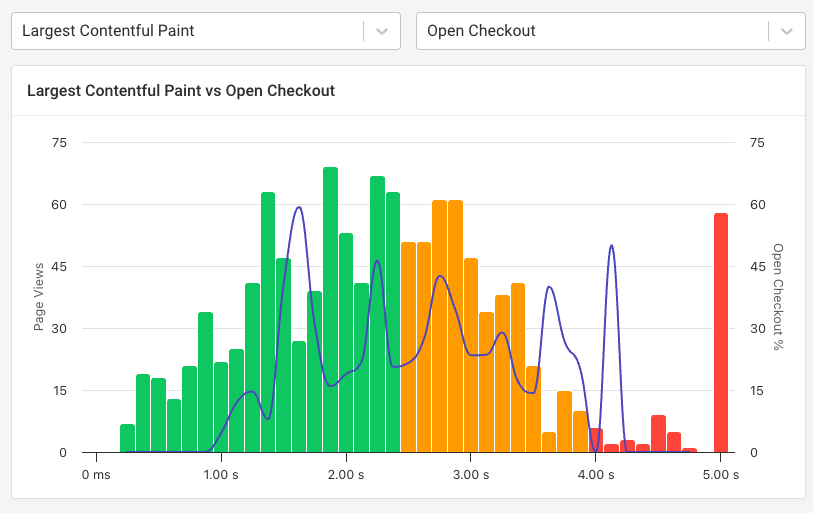
The Conversions tab in DebugBear can tell you how likely visitors with different page load times are to convert.
Each bucket represents the average metric value across the session. The line shows the conversion rate for each bucket.