
Lazy loading is one of the most commonly recommended web performance techniques. In theory, it reduces initial page load by deferring non-critical resources. In practice, it’s often misused and can actually make performance worse.
This guide explains:
- What lazy loading is and how it works
- When lazy loading improves performance
- When it hurts performance (LCP, CLS, INP)
- Lazy loading vs eager loading
- Practical best practices
Understanding these trade-offs will help you avoid common pitfalls and optimize real-world website performance.
What Is Lazy Loading?
Lazy loading is a technique where resources are only loaded when they are needed: typically when they enter (or are about to enter) the viewport.
Common examples include:
- Images
- iframes (e.g., embeds)
- Components or routes
- Data fetching
The most common modern implementation is native browser support with the loading="lazy" attribute:
<img src="image.jpg" loading="lazy" />
This demo by Mathias Bynens shows how images are requested as they are about to enter the viewport:
With lazy loading, instead of loading everything upfront, the browser delays fetching until the user scrolls near the element.
This reduces initial network and CPU work — but shifts that work to later in the user journey.
When Lazy Loading Helps Performance
Lazy loading is effective when used selectively for things such as below-the-fold images, long lists or feeds, infinite scroll interfaces, or heavy third-party embeds (videos, maps).
When implementing lazy loading, we can observe the following benefits:
- Reduced initial page weight
- Faster initial render
- Lower bandwidth usage
- Less main thread work during load
When used correctly, lazy loading can improve Largest Contentful Paint (LCP) by reducing competition for critical resources.
When Lazy Loading Hurts Performance
This is where things get interesting — and where most implementations go wrong. Lazy loading the wrong content can actually make performance worse. Let's look at some common pitfalls.
Lazy Loading Can Delay The Largest Contentful Paint
One of the most common mistakes is lazy loading above-the-fold content, including the hero image.
<img src="hero.jpg" loading="lazy" />
This request waterfall shows the impact this has on when different page resources are loaded. The hero image only loads once the browser starts rendering the page and realizes that this lazy-loaded image is already in the viewport.
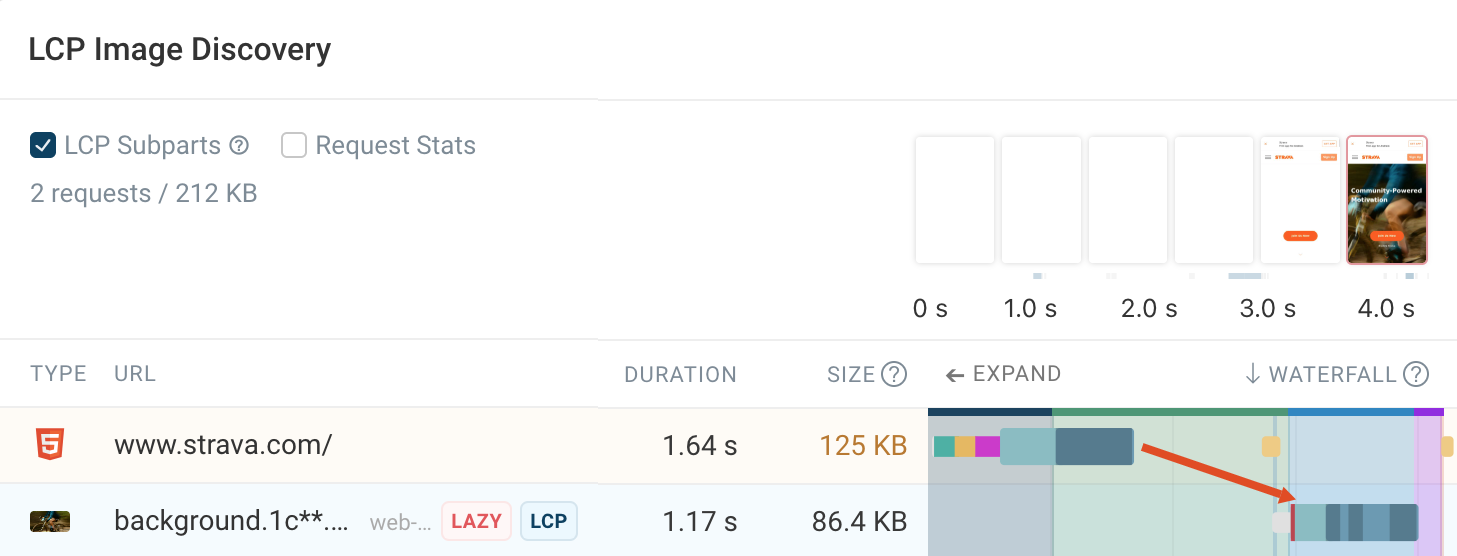
This delays the loading of the most important visual element on the page. This is bad because browsers do not prioritize lazy-loaded resources, the LCP element loads later than necessary, and it has a direct negative impact on Google's Core Web Vitals metrics.
View this performance test in full here.
The best practice here is to never lazy load hero images, above-the-fold content, or critical UI elements. Use
fetchpriority="high" for critical images to ensure they are prioritized by the browser.
<img src="hero.jpg" loading="eager" fetchpriority="high" />
Layout Shift Issues From Late Loading Content
Lazy loading often causes layout shifts when content appears after the user scrolls. It happens because there is no reserved space for images or embeds, or dimensions are unknown until content loads. This results in layout shifts during scrolling, a poor Cumulative Layout Shift (CLS) score, and a janky user experience.
To fix this, always reserve space for an element like this:
<img src="image.jpg" width="600" height="400" />
Or in CSS:
.aspect-ratio-box {
  aspect-ratio: 3 / 2;
}
Lazy Loading Can Slow Down Interactions
This is a less obvious, but very important, downside.
Interaction to Next Paint (INP) measures how quickly your page responds to user input. Lazy loading can hurt INP by shifting work into interaction moments.
Let’s take a look at an example scenario:
- User scrolls
- New images/components enter viewport
- Browser starts network requests, decoding images, layout + paint, and JavaScript execution
All of this work competes with user interactions, which can result in increased input delay, main thread blockage, and an overall worse INP score.
Lazy loading doesn’t remove work — it delays it. And sometimes it delays it to the worst possible moment.
Too Much JavaScript-Based Lazy Loading
Many implementations rely on libraries using:
- IntersectionObserver
- Scroll listeners
- Custom loaders
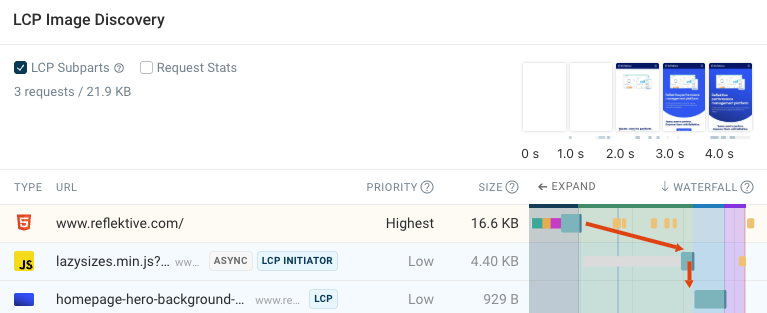
While flexible, they introduce additional JavaScript cost, more main thread work, and increased complexity.
The better approach here could be to prefer native loading="lazy" and avoid heavy abstractions unless necessary.
Overusing Lazy Loading
A common anti-pattern is lazy loading everything:
- Images
- Components
- Data
- Routes
This leads to:
- Constant network requests during scrolling
- UI popping in late
- Increased CPU work over time
- Worse perceived performance
Lazy loading should be applied selectively — not globally.
Lazy Loading vs Eager Loading
Choosing between lazy and eager loading is about prioritization.
| Scenario | Best Strategy |
| Hero image | Eager |
| Above-the-fold UI | Eager |
| Critical CSS/JS | Eager |
| Below-the-fold images | Lazy |
| Infinite scroll content | Lazy |
| Third-party embeds | Lazy |
A rule of thumb here is to load critical content early and defer non-critical content selectively.
Best Practices Checklist
Let’s summarize what we have learned in this article into a single useful best practices checklist for lazy loading:
- Lazy load below-the-fold content
- Use native
loading="lazy" - Reserve space for images and embeds
- Measure impact with real user data
- Prioritize LCP elements
Remember: lazy loading does not always improve performance.
Detect performance issues caused by lazy loading
DebugBear can help you identify when lazy loading is helping and when it’s hurting performance. Sign up for a free trial or check your website with our free website speed test.
You can:
- Detect LCP elements and see if they are delayed
- Analyze layout shifts caused by late-loading content
- Inspect network waterfalls to see when resources load
- Identify long tasks affecting INP
You can also detect spikes in CPU processing activity on the main thread or layout shifts that happen when the user scrolls down the page.
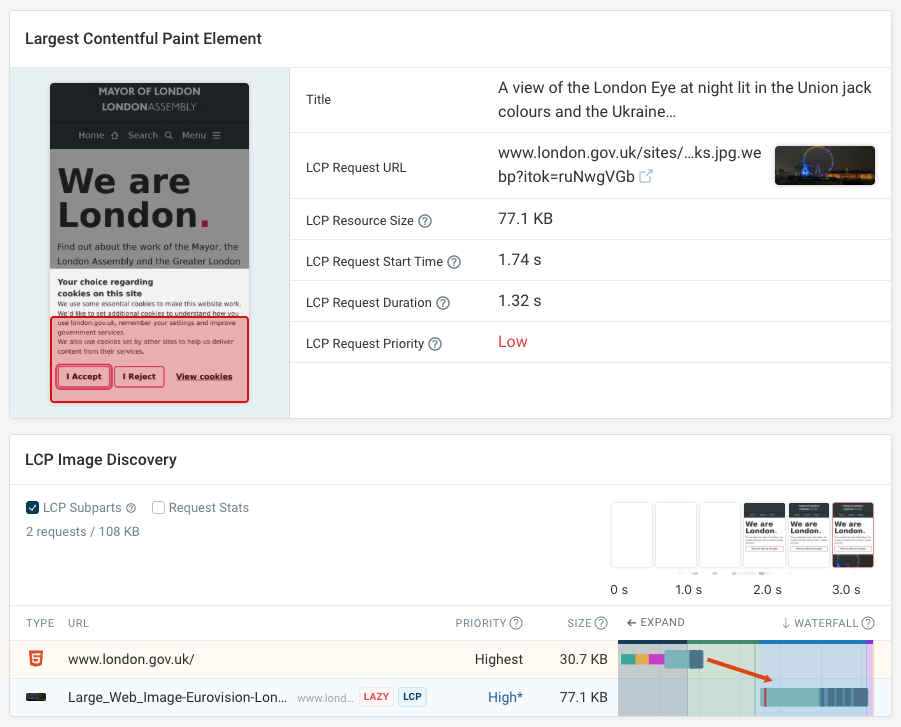
When there are issues with lazy loading on your site, our detailed performance recommendations will report the issue and what you can do to fix it.
You can also run site speed experiments to try out optimizations without making changes on your live site.

In this example, you can see the impact that lazy loading the hero image has on the LCP metric and on user experience. The experiment shows that lazy loading the hero image causes a significant delay in LCP.
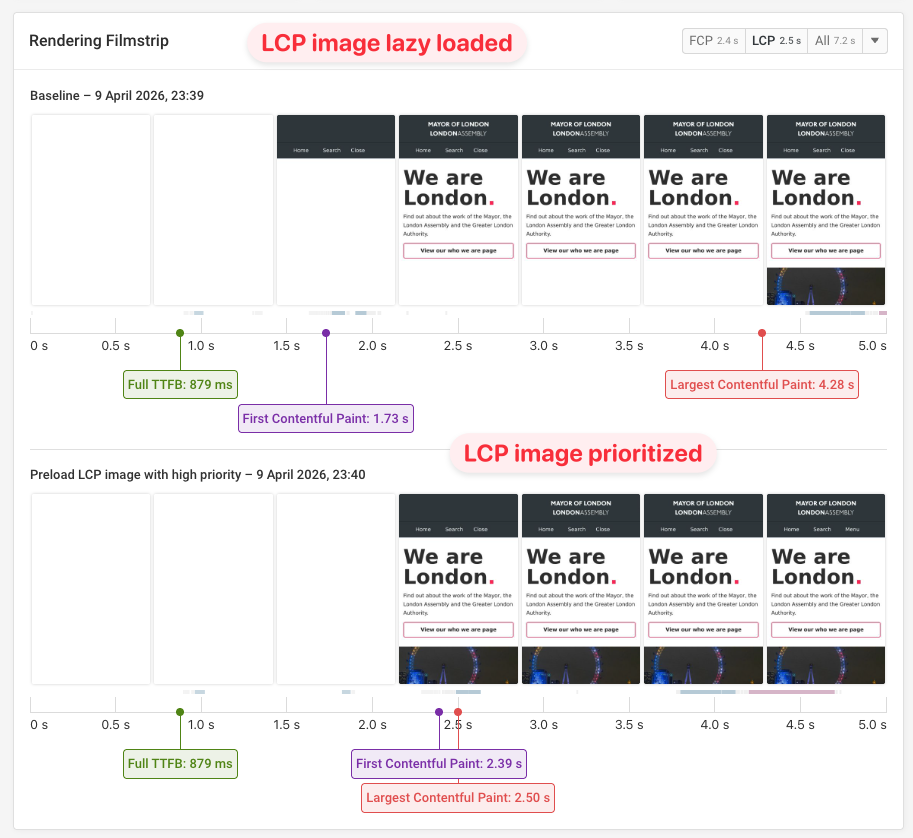
This makes it much easier to connect implementation decisions to real performance metrics. To check all features of DebugBear, visit the demo project here.
Conclusion: optimize lazy loading and keep your website fast
Lazy loading is a powerful optimization technique — but it’s easy to misuse.
Used correctly, it reduces initial load and improves performance, but overusing it can lead to delayed LCP, unexpected CLS, INP issues, or in general a degraded user experience.
The key is not whether to use lazy loading — but when and how to use it.
Monitor Page Speed & Core Web Vitals
DebugBear monitoring includes:
- In-depth Page Speed Reports
- Automated Recommendations
- Real User Analytics Data