Lighthouse: Accessibility tree is not well-formed
Lighthouse recently added a new agentic browsing category. This article looks at one of the audits in this category and explains why it matters.
What is the accessibility tree?
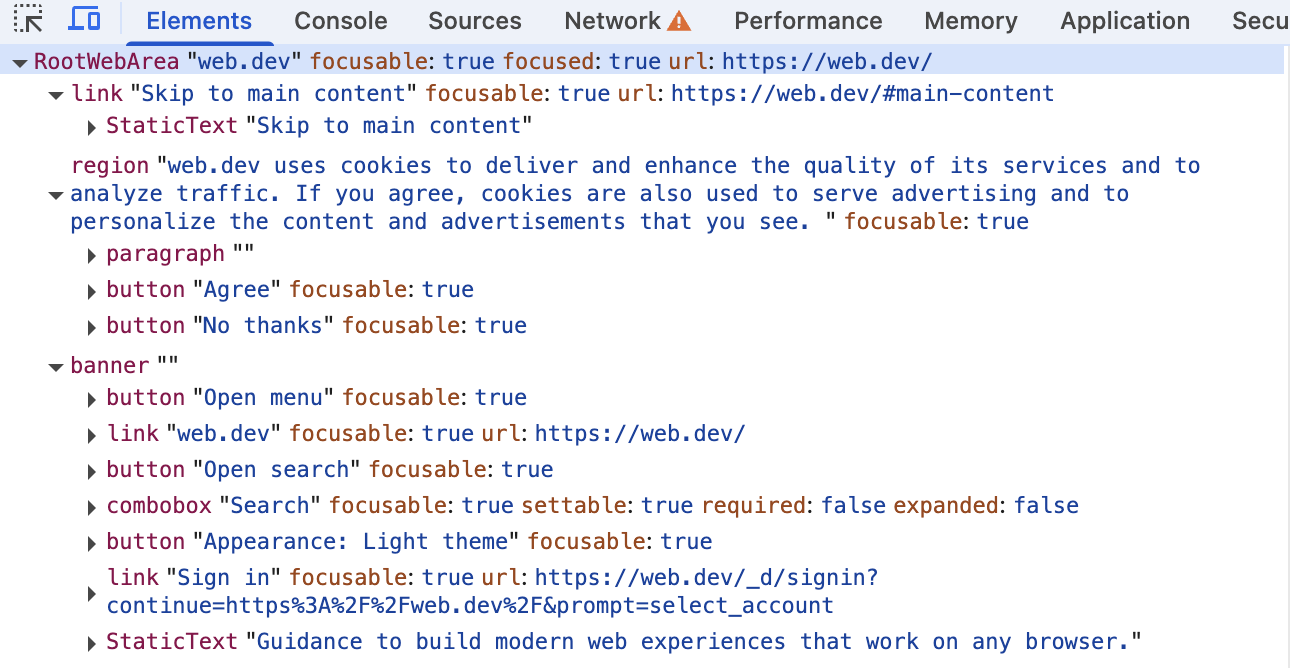
The accessibility tree is a simplified representation of the page structure that browsers expose to screen readers and other tools.
Compared to processing the full HTML DOM tree or evaluating a page screenshot, AI agents can process the accessibility tree more efficiently. It should be well-structured and should not contain decorative elements.
You can view the accessibility tree in Chrome DevTools by opening the Elements panel and pressing the a key.
How to run the accessibility tree agentic browsing audit
Not all tools currently support the new Lighthouse category. You can use our website grader to test your website with an up-to-date version of Lighthouse.
You can also use npm to install Lighthouse locally on your computer and then run it from the command line.
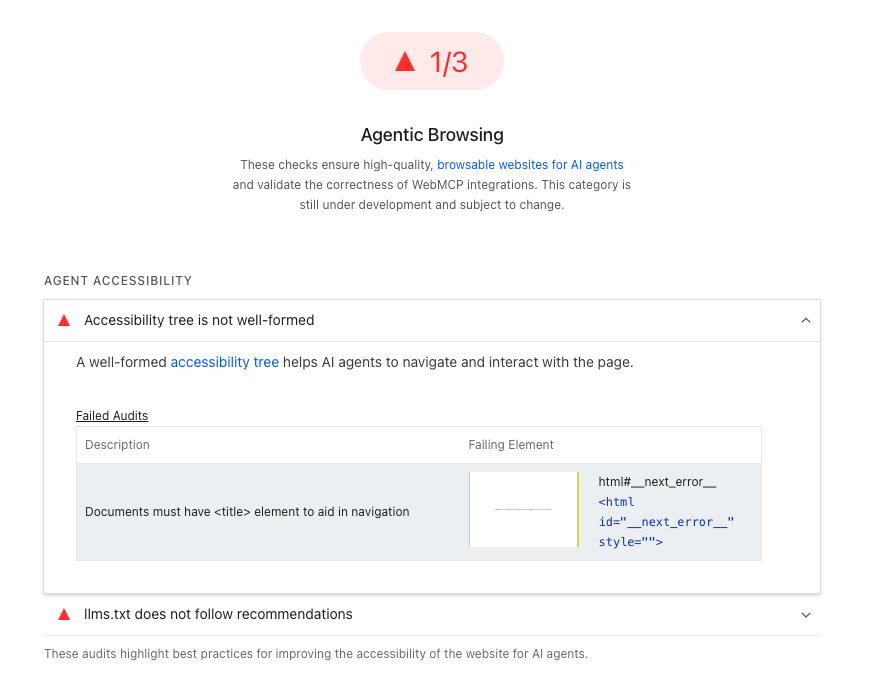
Currently the accessibility tree audit reports a subset of the normal Lighthouse accessibility audits.
What causes a website to fail the accessibility tree audit?
If your website does not pass the accessibility tree audit, that means some information is missing. To fix these issues you need to provide additional data on the role of different UI elements and ensure accessibility attributes are not used incorrectly.
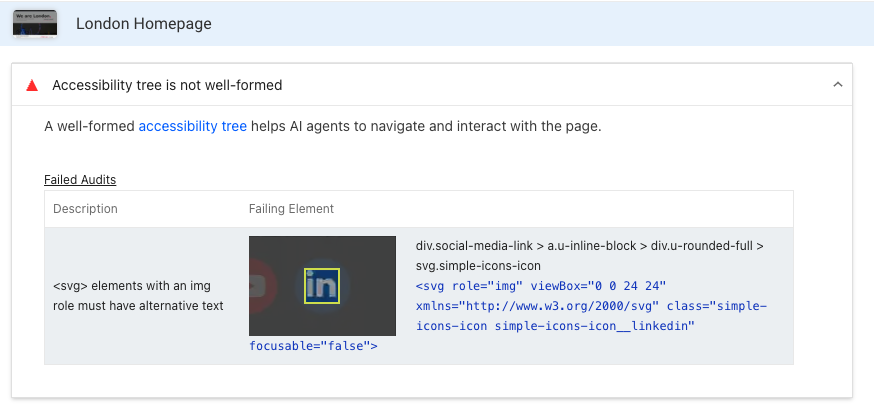
Let's look at some examples of why you might fail this audit.
Links must have discernible text
Link text usually tells people where the link will send them, but sometimes links only have images or other visual content. In that case, you need to give the link an accessible name.
The simplest fix is often an alt attribute on the image inside the link:
<a href="https://example.com">
  <img src="store-logo.png" alt="Open website store" />
</a>
If the link has no image, or you want to label the link independently of the image, you can add an aria-label or title attribute on the link itself:
<a href="https://example.com" aria-label="Open website store">
  <img src="store-logo.png" alt="" />
</a>
<svg> elements with an img role must have alternative text
This error tells you that an SVG vector image is used on the page, but has no descriptive text that can be read by screen readers or AI agents.
Add a <title> element inside the SVG to provide a description, or add role="presentation" to indicate that the image is decorative and can be ignored.
<svg role="img" xmlns="http://www.w3.org/2000/svg" viewBox="0 0 400 400">
  <title>Diagram showing delivery options: if you...</title>
  ...
</svg>
Elements must only use permitted ARIA attributes
Each ARIA attribute is only allowed on elements with a role that supports it. A plain <div> or <span> has the default role generic, which doesn't support naming via aria-label or aria-labelledby. A common failure looks like this:
<!-- Fails: aria-label on a <div> with no role and no accessible content -->
<div aria-label="Promotional banner"></div>
To fix this you can:
- Remove the ARIA attribute if it isn't needed.
- Add a role that supports the attribute, for example
role="region"orrole="navigation"to expose the element as a landmark that can be named. - Switch to a more appropriate element. For interactive content, use a
<button>,<a>, or<input>instead of a<div>.
<!-- Passes -->
<div role="region" aria-label="Promotional banner"></div>
Stay on top of accessibility, performance, and SEO issues
DebugBear makes it easy to run Lighthouse audits across your website and collect in-depth website performance data.
Identify what audits fail most frequently and what pages are slow. Get alerted when there's a score regression or performance issues.
Monitor Page Speed & Core Web Vitals
DebugBear monitoring includes:
- In-depth Page Speed Reports
- Automated Recommendations
- Real User Analytics Data