Chart annotations
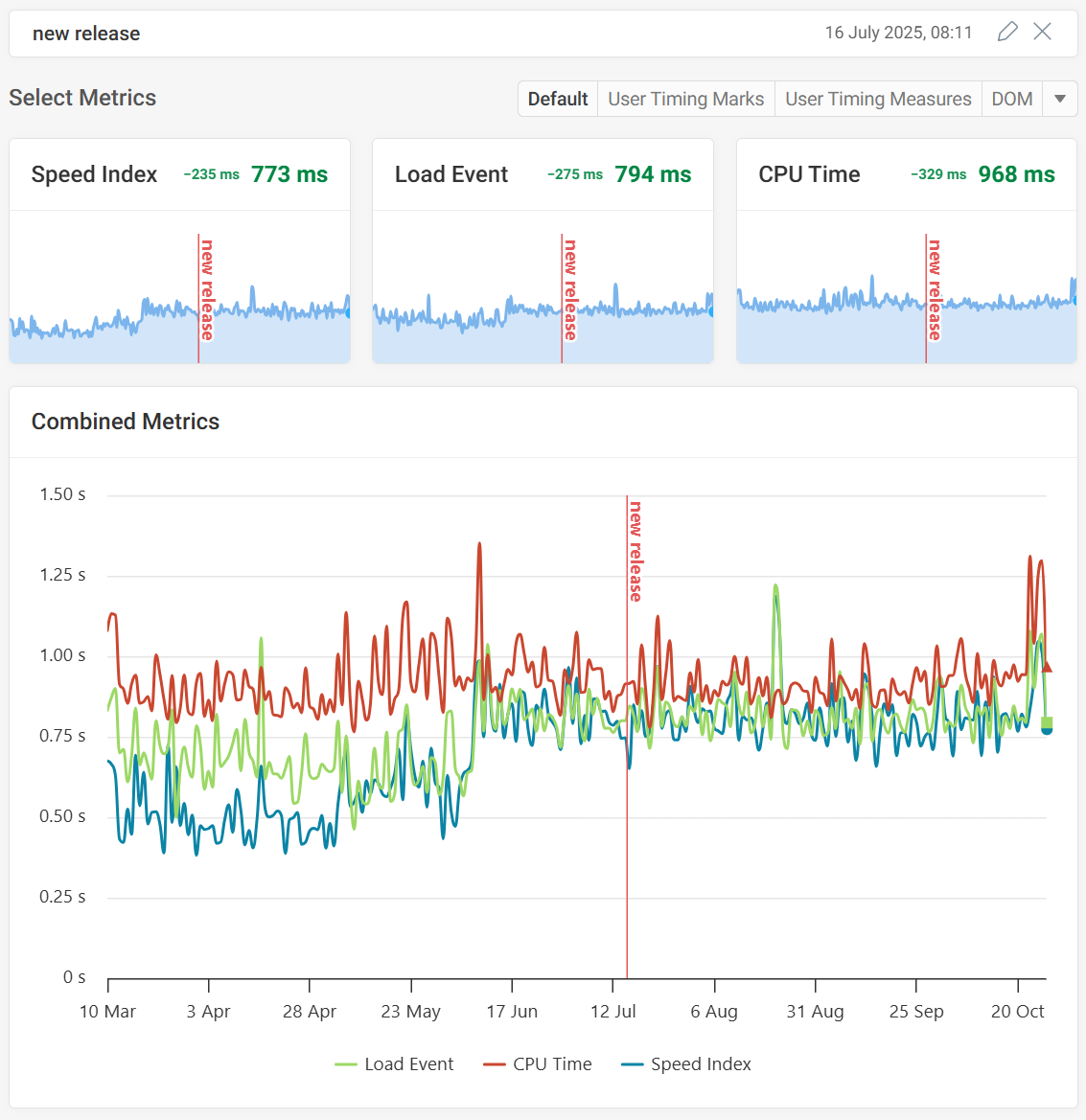
Annotations allow you to mark specific dates in your web performance charts.
For example, you could add an annotation when:
- a new release is deployed
- a new image was added to your homepage
- your CDN adds support for a new image format
- you enable HTTP/2 on your server
How to add a chart annotation
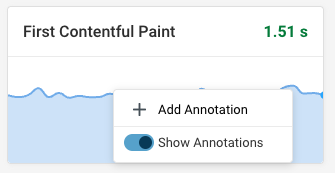
- Right click a chart
- Click Add Annotation
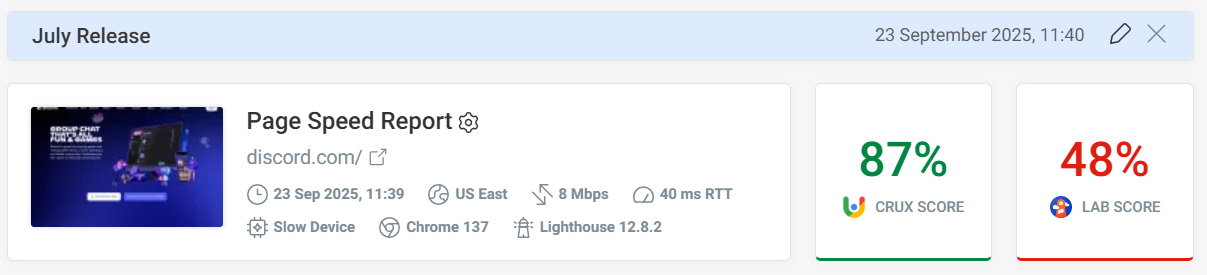
- Enter annotation details at the top of the page
- Click Create

Now the new annotation has been created.
Limiting annotations to specific pages
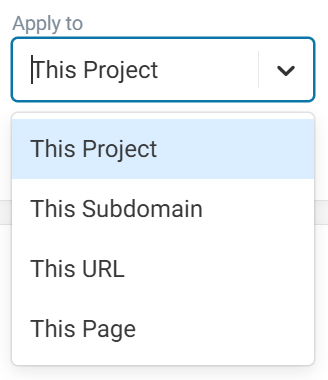
By default annotations are added to all pages in a project. You can change this using the Apply to dropdown.
- This Project: add the annotation to all pages
- This Subdomain: add the annotation to this hostname, for example app.example.com
- This URL: add the annotation to all pages with the same URL
- This Page: only add the annotation to this specific monitored page
The last three options are only available when you add the annotation from a chart on a specific page. Annotations added from a project-level chart always apply to the whole project.