View page speed data in ChatGPT
You can connect ChatGPT to your DebugBear account using the DebugBear MCP server. You can then run page speed tests, review synthetic test data, or query real user monitoring metrics from within your ChatGPT conversations.
How to add the DebugBear app
Start by opening the ChatGPT settings using the account menu in the bottom right.
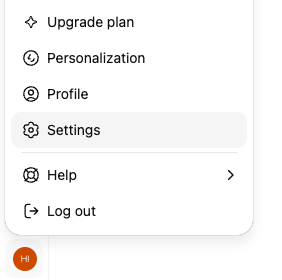
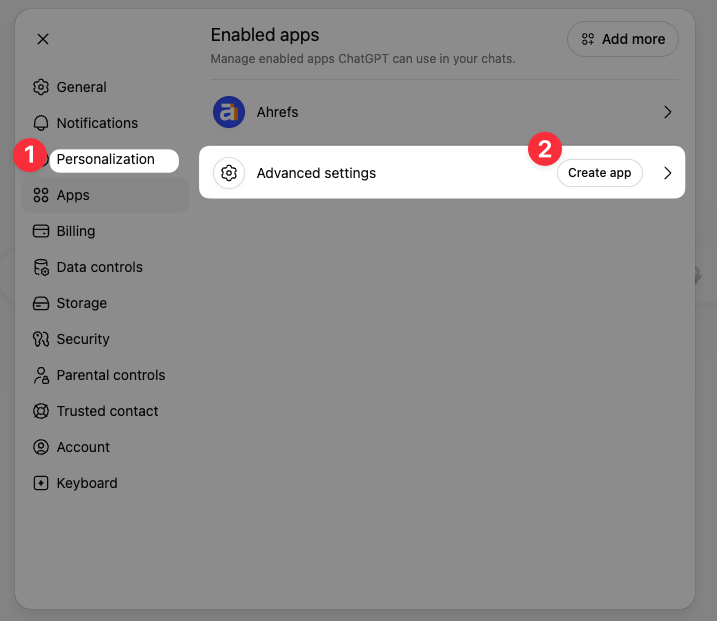
Select Apps and then click on Create app under Advanced settings.
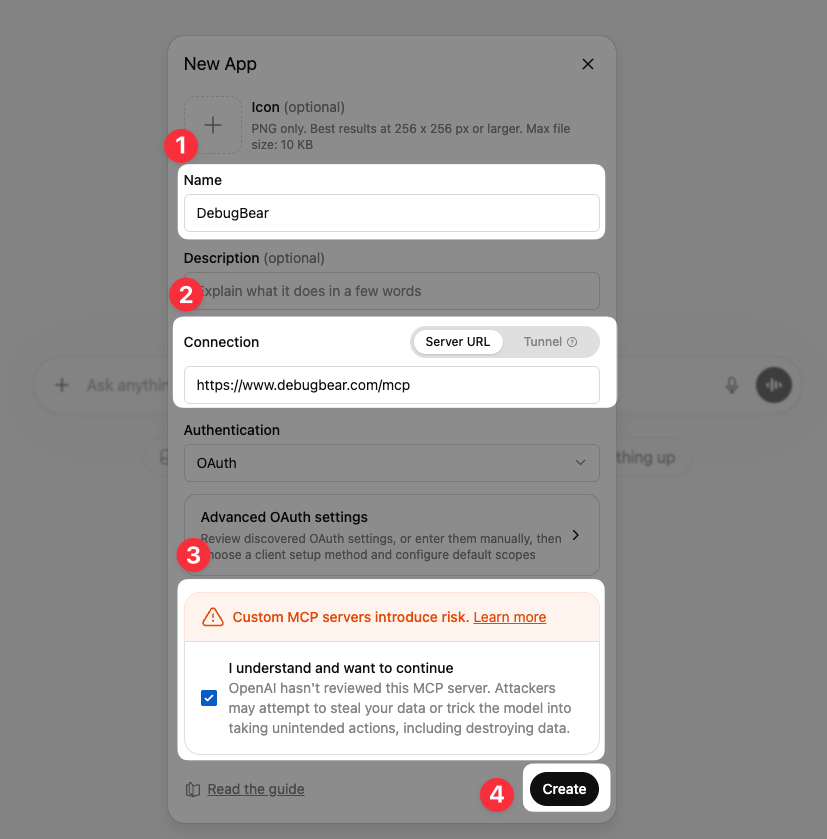
Complete the form as follows:
- Name:
DebugBear - Server URL:
https://www.debugbear.com/mcp - Check the "I understand and want to continue" box
- Click Create
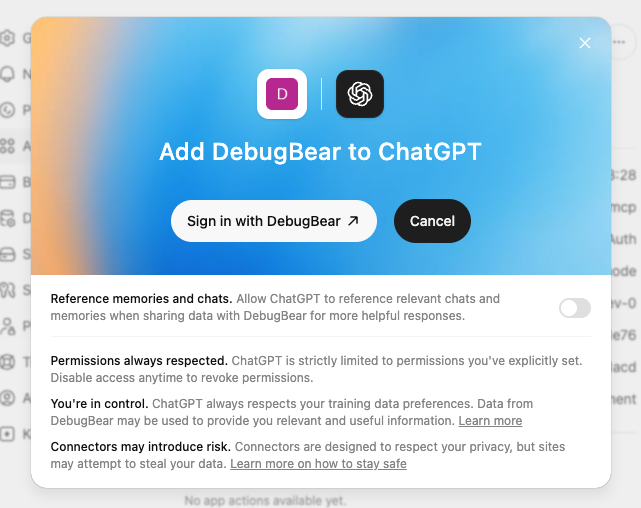
You then need to grant ChatGPT access to your DebugBear account.
Click Sign in with DebugBear to start the approval flow.
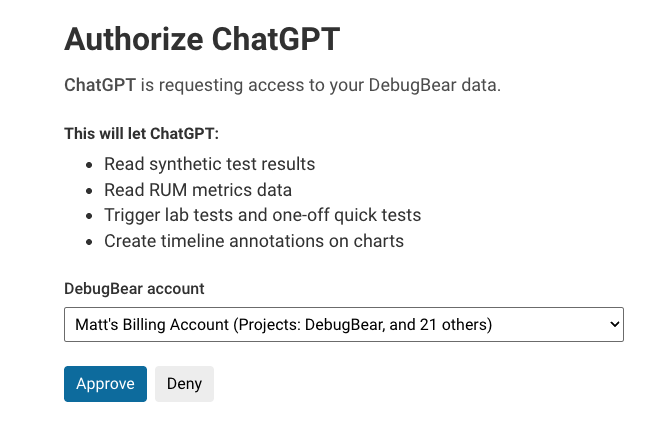
Pick the DebugBear account you want to connect and click Approve to set up the connection.
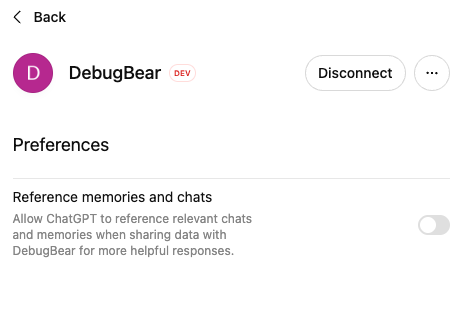
The DebugBear MCP server will show as connected and you can return to your chats.
How to use the DebugBear app in ChatGPT
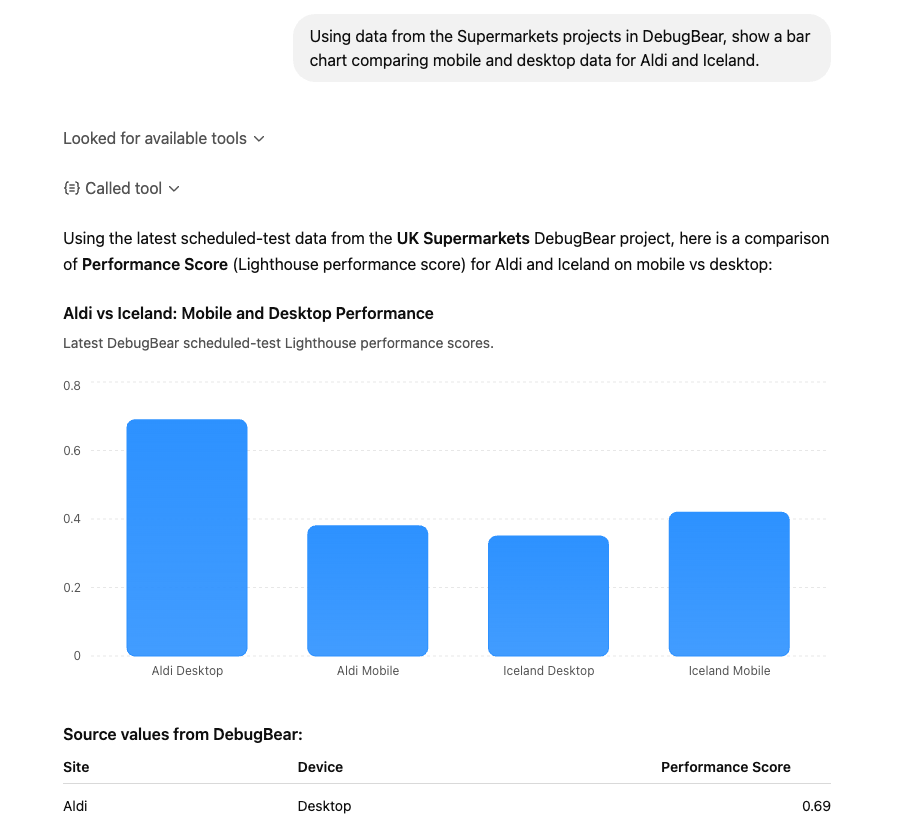
Once the MCP server connection has been set up you can ask ChatGPT questions about your DebugBear data. It will use the tools provided by our MCP server to answer your questions.
For example, you could ask:
Using data from the Supermarkets projects in DebugBear, show a bar chart comparing mobile and desktop data for Aldi and Iceland.
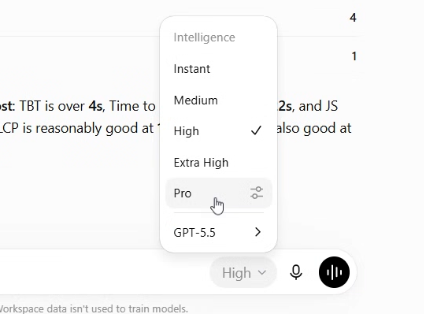
Run prompts with a high-enough effort level to prevent hallucinations
Make sure to select a sufficiently high effort level in ChatGPT. We've found that with instant responses it sometimes hallucinates data or falsely claims that our MCP server returned an Unauthorized response.