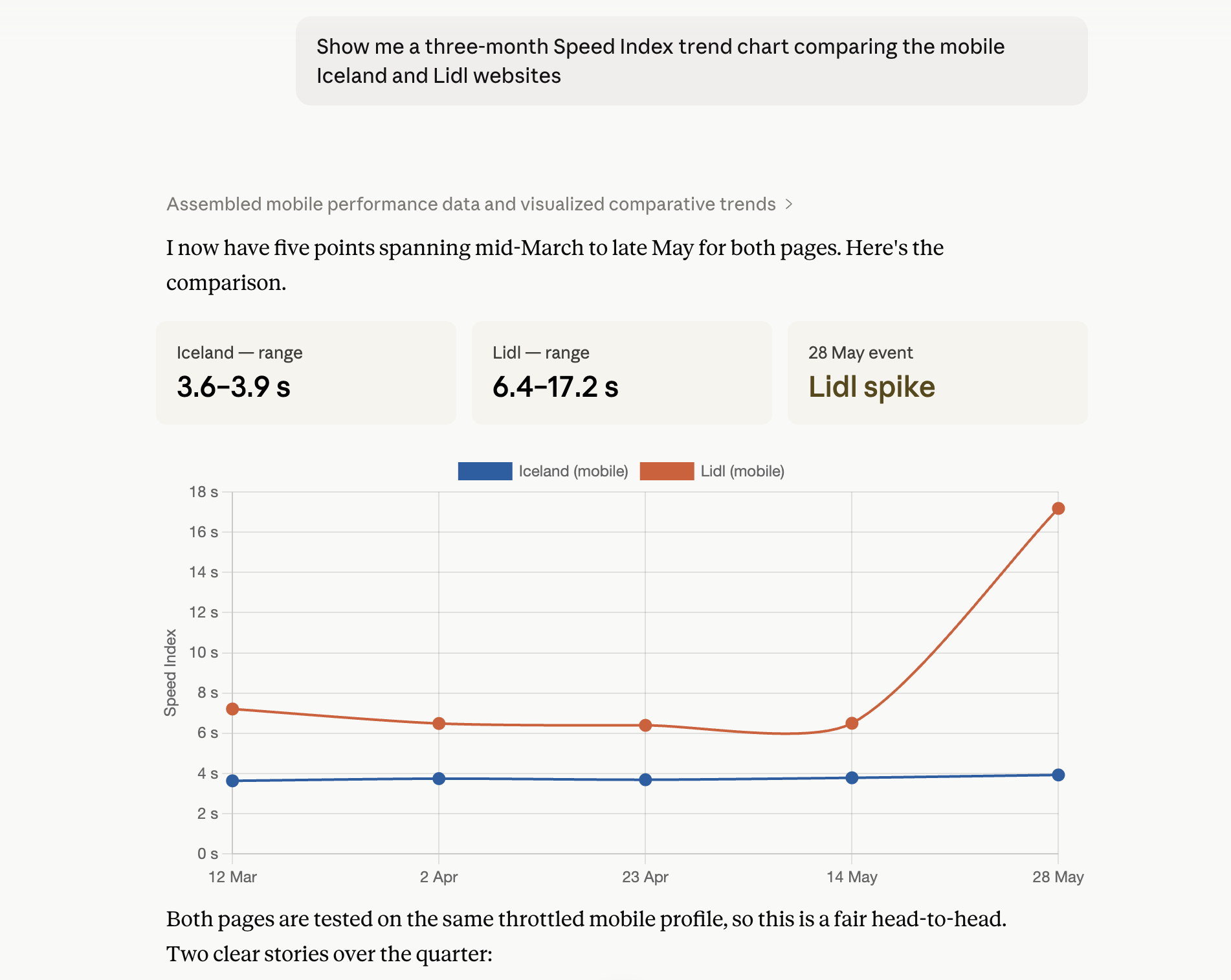
How to view web performance data in Claude
You can connect Claude to your DebugBear account using the DebugBear MCP server. This lets you run page speed tests, query real user metrics, add timeline annotations, and more.
How to add the DebugBear connector
To use DebugBear in Claude you first need to add a custom MCP integration and grant Claude access to your DebugBear account.
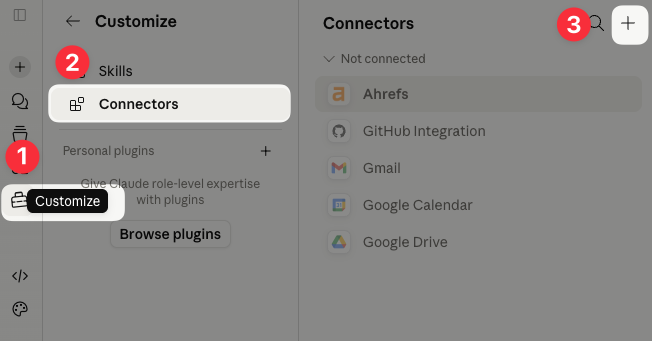
- In Claude, select Customize in the sidebar.
- Open Connectors.
- Click the Add Connector (+ icon) button.
- Select Add custom connector.
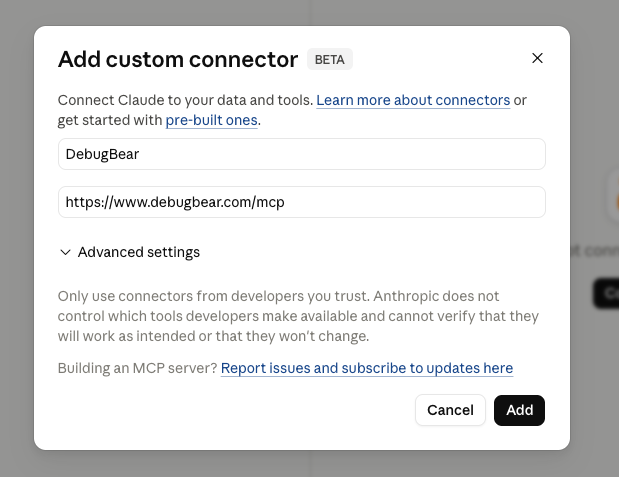
Enter "DebugBear" as the name and https://www.debugbear.com/mcp as the MCP Server URL. Click Add to finish.
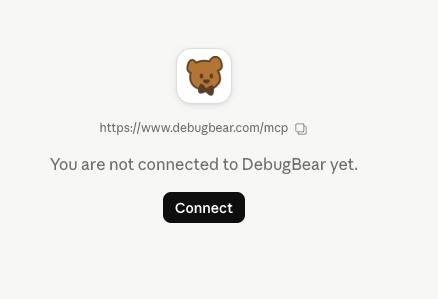
Click Connect to grant Claude access to your DebugBear data.
You'll be redirected to the DebugBear website. Click on Approve to complete the connection.
If you have access to multiple DebugBear accounts, you can also select which account you want to connect.
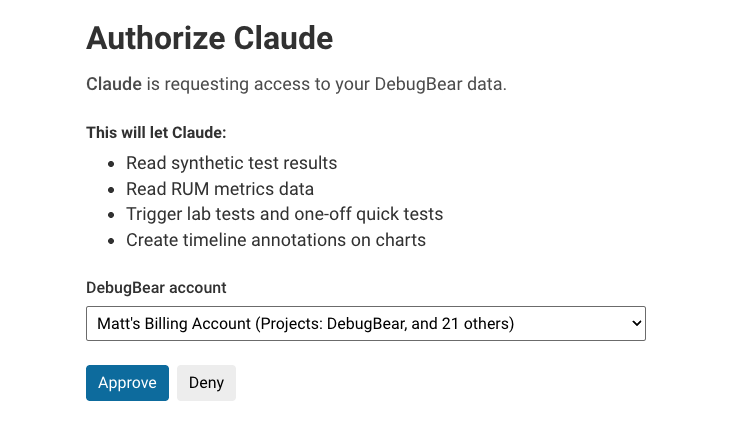
Your MCP connection is now set up.
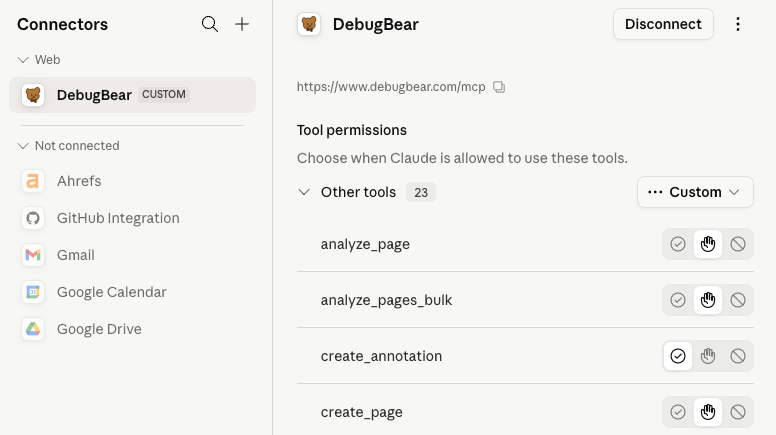
Claude lists all the actions it can take using DebugBear in the connector screen.
How to use the DebugBear connector in Claude
To access your data, simply ask a question like this:
Show me a three-month Speed Index trend chart comparing the mobile Iceland and Lidl websites.
Claude will then use the available MCP tools to fetch the data and generate a response. You'll be asked for specific access permissions the first time they are used, for example listing projects in your account or running a synthetic test.