Test page speed with Claude Code
You can connect Claude Code to your DebugBear account using the DebugBear MCP server. This lets Claude Code run page speed tests, query real user metrics, add timeline annotations, and perform other DebugBear actions directly from your terminal.
How to add the DebugBear MCP server
After entering Claude Code in the terminal, run the following command to start the setup.
claude mcp add --transport http dbb https://www.debugbear.com/mcp
Then approve the command.
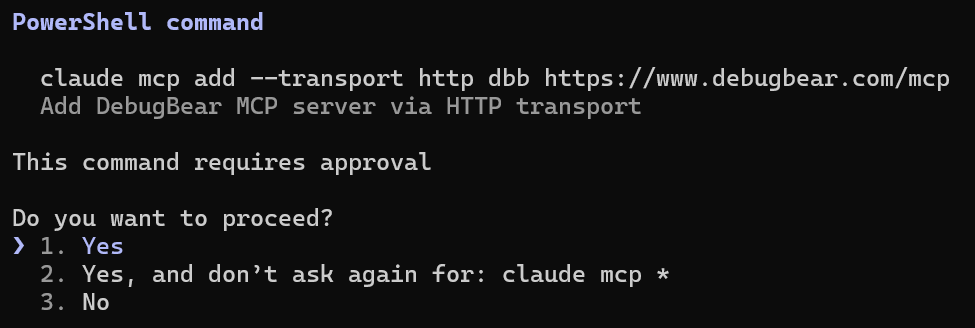
The terminal will then show the DebugBear MCP server has been added.

The next step is to authenticate the MCP server with your DebugBear account. Run /mcp to view the options.
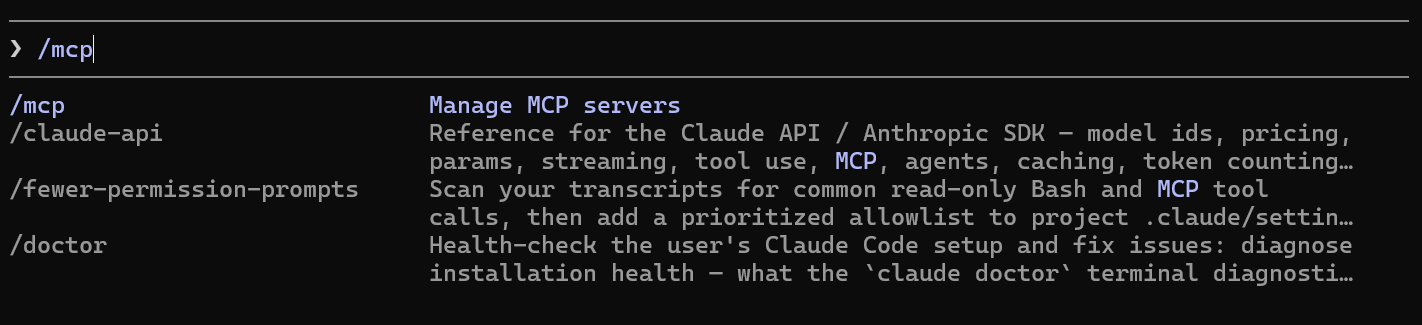
The MCP servers will be presented. Select the DebugBear MCP which may be listed under Unused connectors.
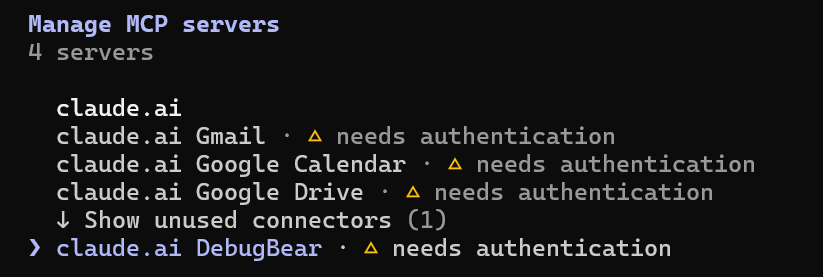
Select authenticate when prompted.
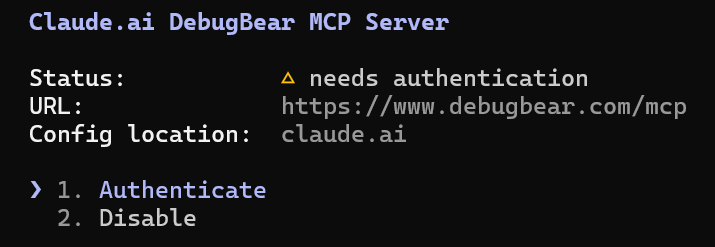
A new browser window will open, where you will need to log in to your DebugBear account.
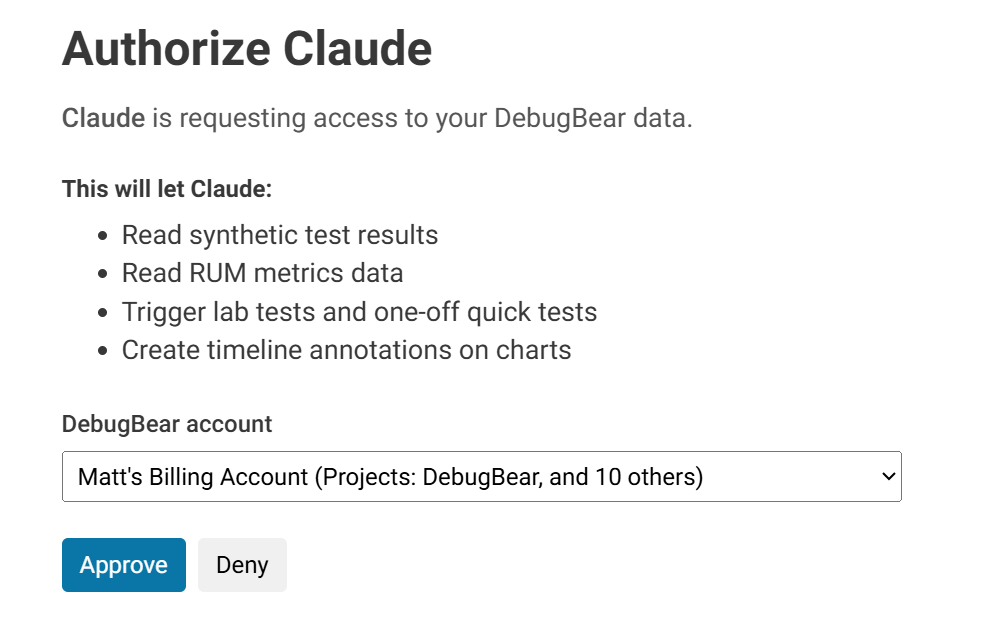
Once approved, return to the terminal and press Enter. A success message should show.

How to use the DebugBear MCP server in Claude Code
Running the /mcp command and then selecting View Tools will show the list of commands. Each command can be viewed with a description.
You can use the MCP server to view monitored pages, check test result data, or run page speed tests.
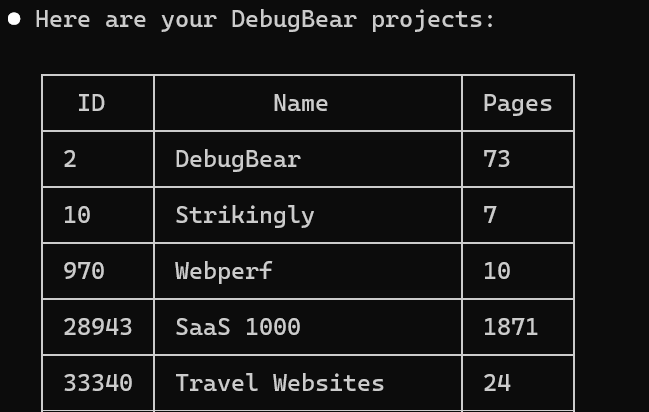
Claude Code will then use the available MCP tools to fetch the data and generate a response. In this example, we ran list_projects to show an overview of each of the projects in our account.