Browser Versions And Baseline Feature Support
The Browsers tab in DebugBear real user monitoring (RUM) shows which browsers and browser versions your visitors actually use. DebugBear then uses that data to show which web platform features your visitors' browsers support.
Browser support data like Baseline tells you when a feature became available across all major browsers. RUM data tells you whether the people visiting your site have upgraded.
How to open the Browsers tab
- Select Real User Monitoring in the sidebar
- Select View Count
- Open the Browsers tab
Browser usage over time
The chart shows each browser's share of your page views over the selected period.
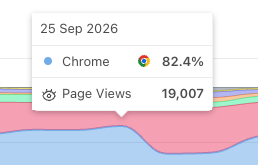
Shares are stacked to 100% rather than showing raw view counts, so a quiet weekend doesn't look like a change in browser mix. The actual page view counts are still in the tooltip.
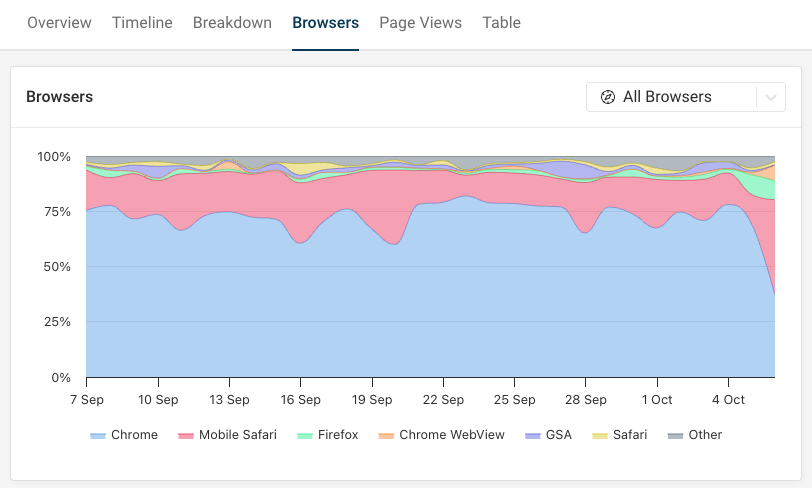
The six biggest browsers get their own band, and the chart groups everything else into Other. This keeps the chart readable when your site has a long tail of niche browsers, and you can still check any of them in the tooltip. Hovering over the chart shows every browser's share for that day along with its page view count.
Break down one browser by version
Use the dropdown in the top right of the chart to switch from All Browsers to a single browser. The chart then shows that browser's versions over time instead of the browser mix.
This is the view that tells you how quickly your audience updates to new versions. A browser that released a feature two years ago is only useful to you if your visitors have started using it.
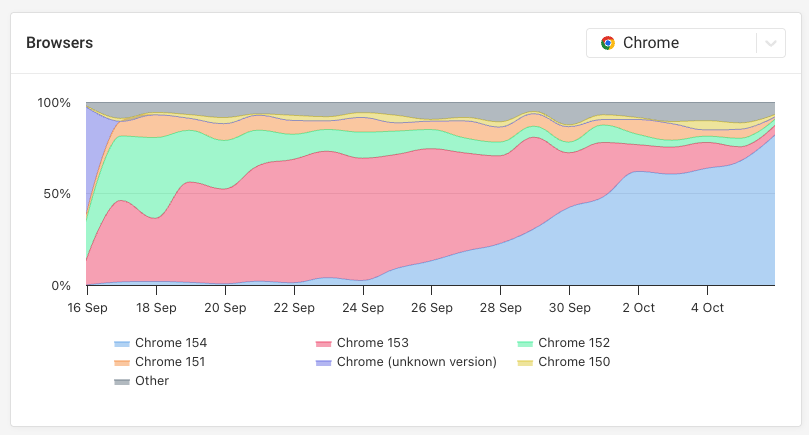
DebugBear breaks Safari down by minor version, for example 18.3, because Safari ships new web platform features in minor releases. Chrome, Edge, and Firefox ship new features with each major release, so they're broken down by major version.
Browser versions also determine which performance metrics DebugBear can collect for a page view. For example, older Safari versions don't report Largest Contentful Paint or Interaction to Next Paint. See our guide to browser support for Core Web Vitals for a full breakdown.
Baseline feature support
Below the chart, the Baseline Feature Support table lists over 1,100 web platform features based on Google's Web Platform Status dataset.
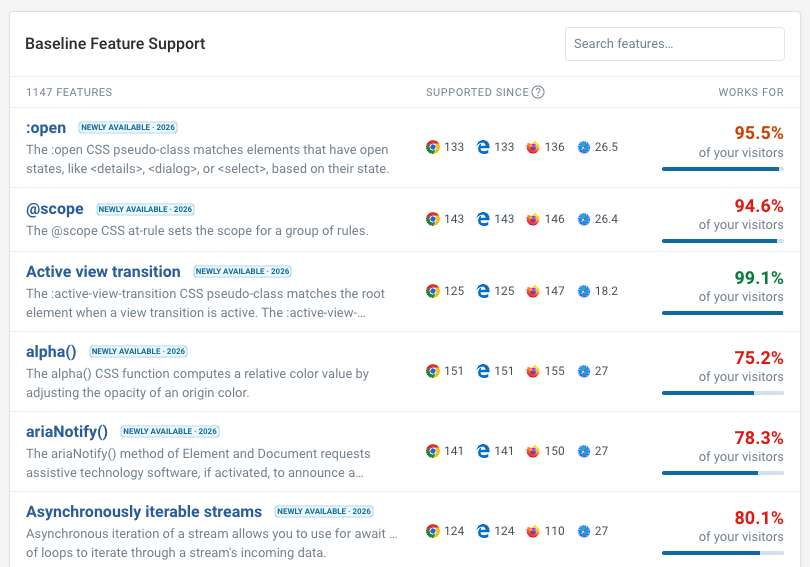
Each feature has a Baseline status:
| Status | What it means |
|---|---|
| Widely available | Supported in every Baseline browser for at least 30 months. Safe to use without a fallback. |
| Newly available | Supported in the latest version of every Baseline browser, but not yet in older ones people are still using. |
| Limited availability | Not yet supported in every Baseline browser. Needs a fallback or a feature check. |
Newly available features show the year they reached Baseline, for example Newly available · 2025.
The list starts with the features that most recently reached Baseline, because those are the ones where the answer depends on your own audience rather than on the specification.
Supported since
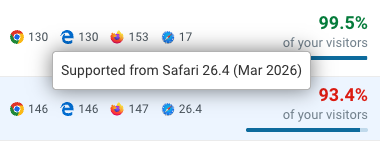
The Supported since column shows the first version of Chrome, Edge, Firefox, and Safari that supports the feature. A dash means the browser doesn't support it yet.
Hover over a browser icon to see the version written out. Where iOS Safari's minimum differs from desktop Safari's, the tooltip gives both.
Works for
The Works for column is the part that uses your own data: the share of your page views that happened in a browser version new enough to support the feature.
The tooltip breaks the percentage down:
- How many of your page views support the feature, out of how many
- Which browser versions are holding it back, largest first
- How many page views couldn't be decided either way
A feature that is only "Newly available" may still work for 98% of your visitors, and a feature that has been "Widely available" for years may still be missing for a meaningful slice of your traffic. The percentage is the number to act on.
Searching and sorting
Use the search box in the top right of the table to filter by feature name, id, or description. Click a column heading to sort by feature name, by the Chrome version in Supported since, or by the share of your visitors in Works for.
Sorting by Works for ascending is a quick way to find the features your audience is least ready for.
How browser engines are resolved
Browser support data describes engines, but visitors report a browser name and version. DebugBear maps one to the other:
- Chrome, Edge, Firefox, and Safari report the engine version directly.
- Samsung Internet maps to the Chromium version it ships with, for example Samsung Internet 28 renders with Chromium 130.
- Opera tracks Chromium at a known offset, which gives a lower bound on the engine version.
- Chrome and Firefox on Android track their desktop versions closely, so they use the desktop support data.
- Every browser on iOS uses WebKit, including Chrome, Edge, and Firefox. Those browsers report their own version numbers, which say nothing about the WebKit version underneath, so DebugBear can't determine their engine version and counts those views as undecidable.
Some page views can't be resolved to an engine version at all. This includes in-app browsers and webviews, third-party browsers on iOS, and user agents that can't be parsed.
DebugBear excludes undecidable page views from the percentage rather than counting them against the feature, so a large share of in-app traffic doesn't make every feature look unsupported. The tooltip reports what share of views was excluded.