Aggregate Audits Report
The project Audits report shows how often each performance, accessibility, or SEO audit is failing across your website.
How to open the aggregate audits report
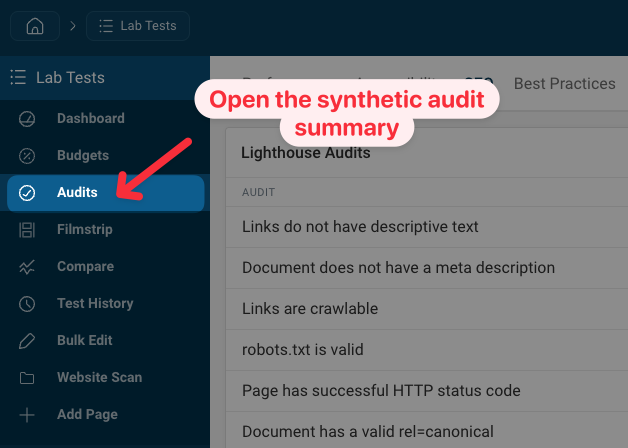
To view the aggregate audits report:
- Make sure you have pages set up for testing
- Select Lab Tests in the sidebar
- Open the Audits report from the sidebar
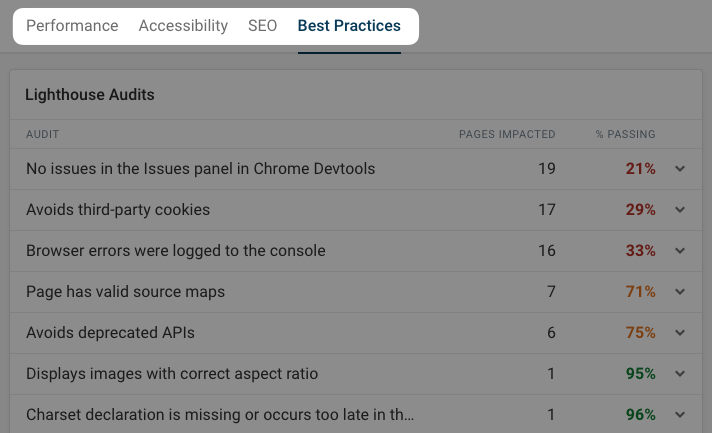
You can select the report category at the top of the page:
- Performance: shows DebugBear recommendations and Lighthouse performance audits
- Accessibility: shows Lighthouse accessibility audits
- SEO: shows Lighthouse SEO audits
- Best Practices: shows Lighthouse best practices audits
How to use the aggregate audits report
The audits dashboard shows the most common audit failures across all pages in your project. This can give you an idea of what optimizations could have a broad impact across your website.
The report shows you how many pages are impacted by a problem, and how many are passing the audit.
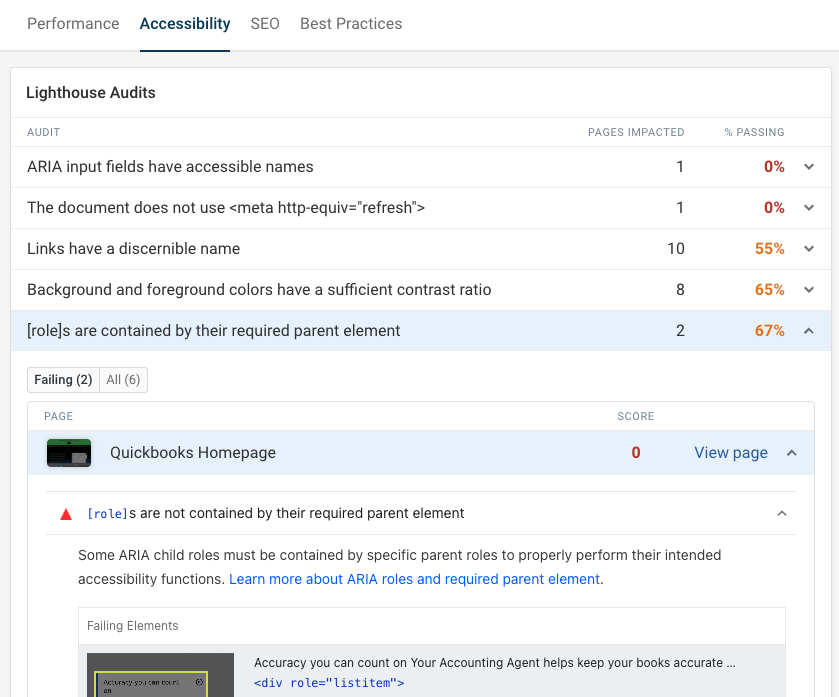
You can click on an audit in the table to see the audit result for each page. By default only pages with failing audits are shown, but you can switch to view all to see the audit assessment for all pages.
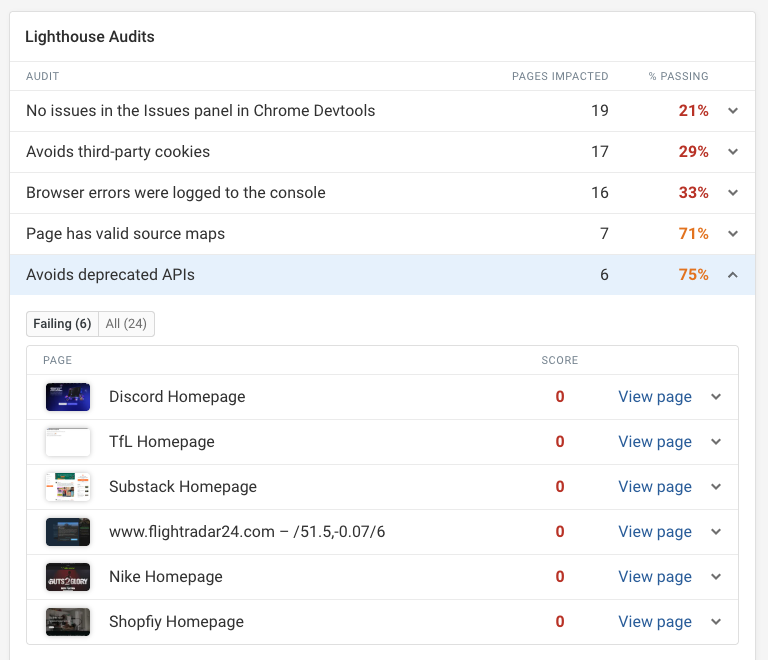
Click on a page to view the detailed audit result for it.
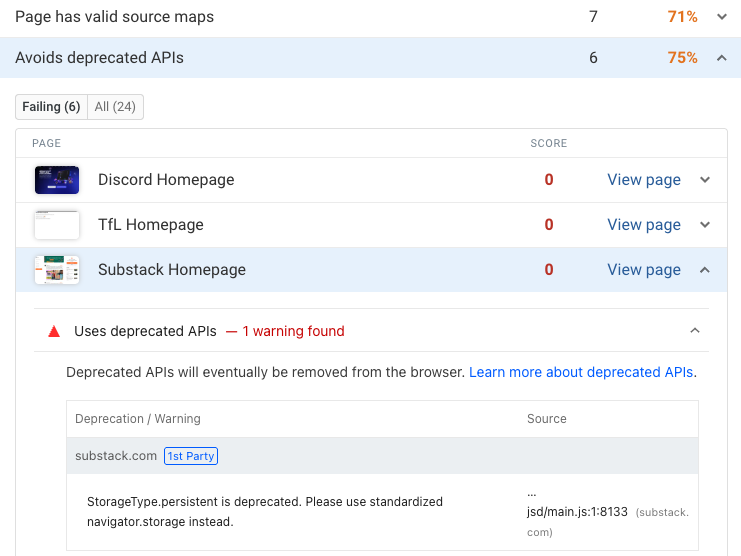
For example, here we see that the Avoids deprecated APIs audit has failed. After expanding the page we can see the specific error message:
StorageType.persistent is deprecated. Please use standardized navigator.storage instead.