Override DNS Settings In Synthetic Tests
A DNS override lets you point a hostname at a specific IP address when DebugBear loads a page. The site URL stays the same, but the underlying request is routed to the server you choose.
Here are some situations where this is useful:
- Testing a staging server using the production hostname
- Bypassing a CDN to test how fast your origin responds directly
- Validating a planned migration before changing your public DNS records
How to set up a DNS override
- Set up a new monitored page, or open Page Settings for an existing page.
- Click Show Advanced.
- Open the DNS Overrides section and click Add DNS Override.
- Enter a Name, Hostname Pattern and a Target IP
- Click Create.
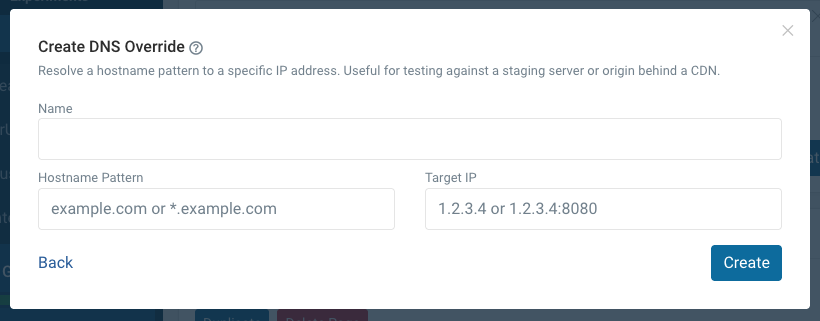
Hostname pattern
The pattern is the hostname you want to redirect. It can be:
- An exact hostname:
example.com - A wildcard for the leftmost label:
*.example.com
You can also include a port to match only that port: example.com:443.
Target
The target is where the matched requests should be sent. It can be:
- An IPv4 address:
1.2.3.4 - An IPv4 address with a port:
1.2.3.4:8080 - An IPv6 address:
2001:db8::1(use brackets if you want to specify a port, e.g.[2001:db8::1]:8080) - Another hostname:
second.example.com
Limitations
The page's URL still uses the original hostname, so TLS certificates and HTTP Host headers must be valid for that hostname on the target server.